KaizIQ Manage
Connect Now
Follow the steps below to get connected with KaizIQ Manage First, you need to go to the project you want to connect with KaizIQ Manage. Then, click on the "Try for free" button.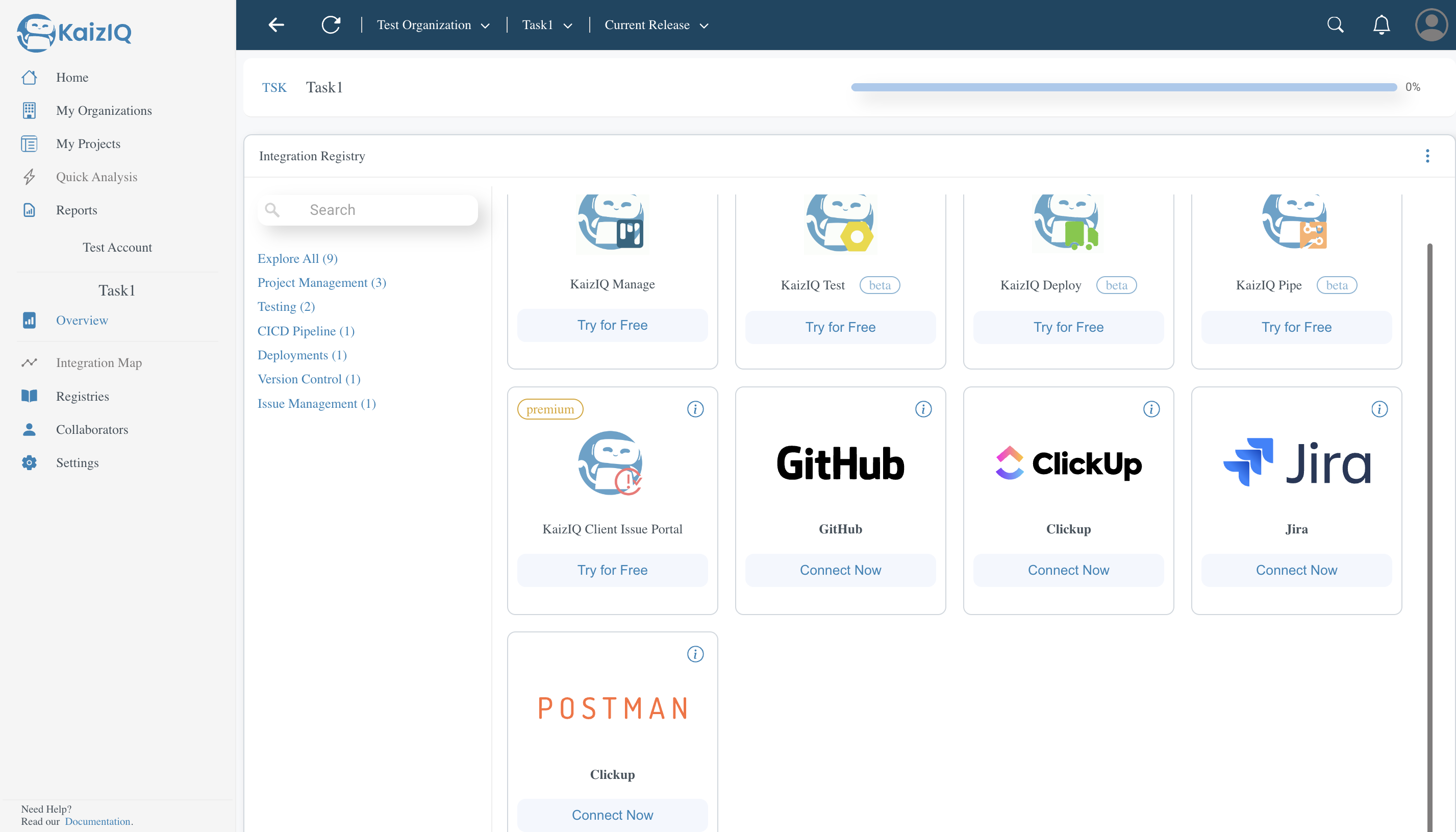
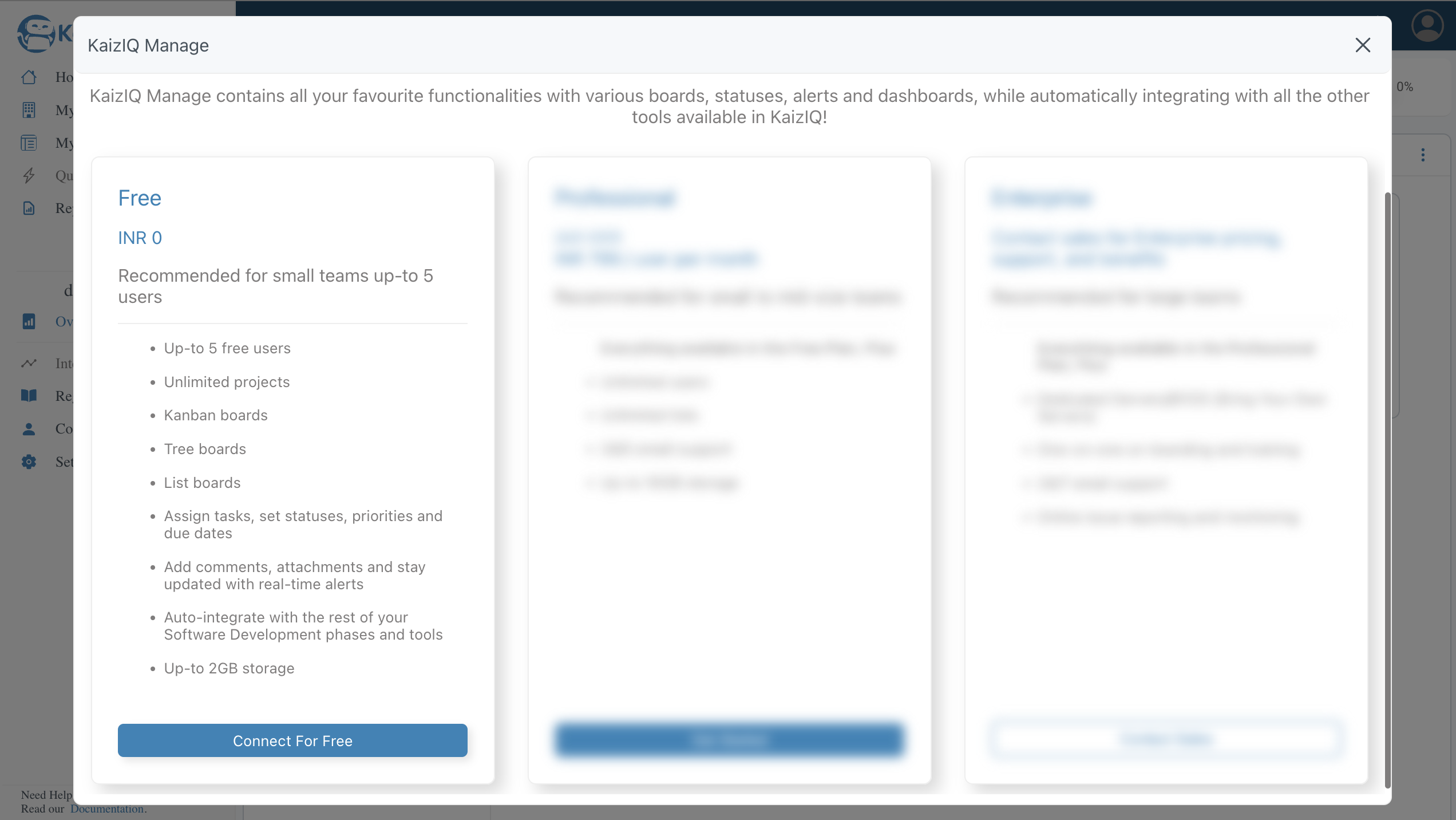
After that, you will be redirected to the KaizIQ Manage page.There, you will see a Connect for free button. Click on that button.
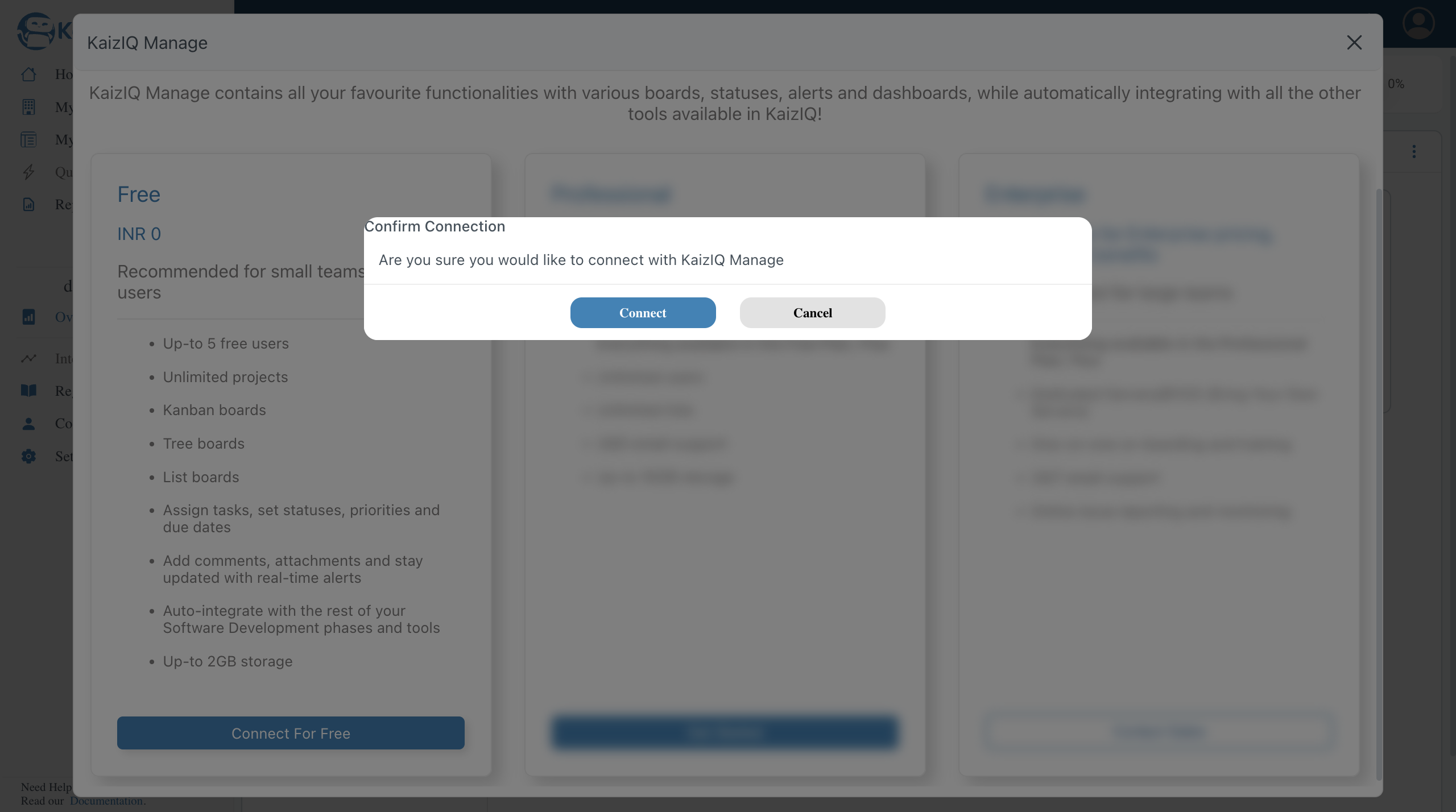
Then, you will ask you to confirm the connection. Click on the Connect button.
After that, you will be redirected to overview page of the project.
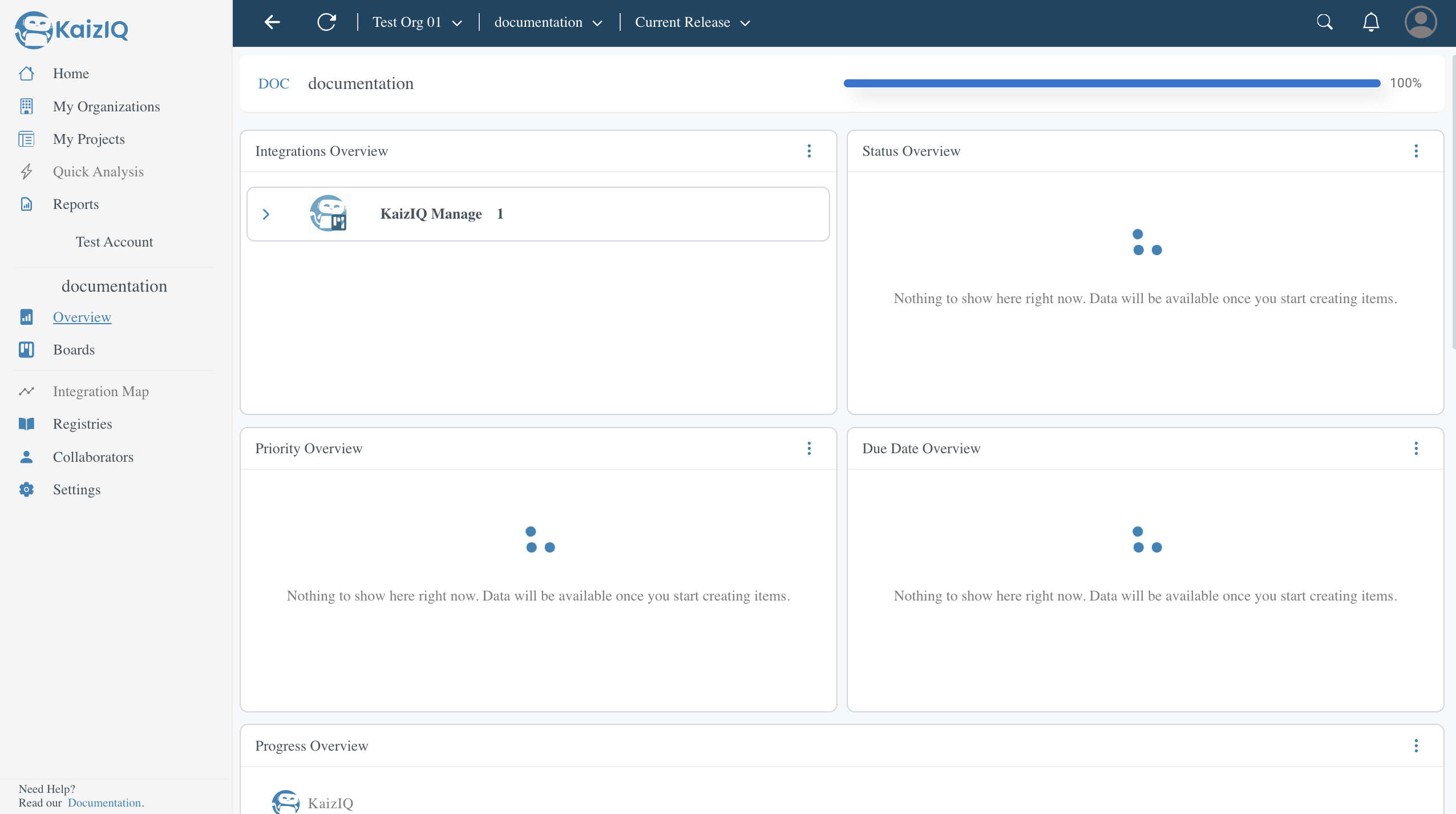
Now, you can see the KaizIQ Manage is connected with your project.
Issues
Our KaizIQ Manage portal provides you 3 ways of creating tasks. They are Story, Epic and Task.-
Epic-A strategic, large-scale goal or feature in software development, divided into smaller, manageable parts to enable incremental progress and better project planning. -
Story- A concise, user-centered description of a software feature, achievable within one development iteration, specifying what, why, and for whom. -
Task- A detailed, time-bound unit of work within Agile development, specifying the specific actions or steps needed to complete a user story or epic efficiently.
Here is how you can create them.
First of all, click on the boards section from your side pannel.On the top right corner you will see a "+" button. Click on that button.
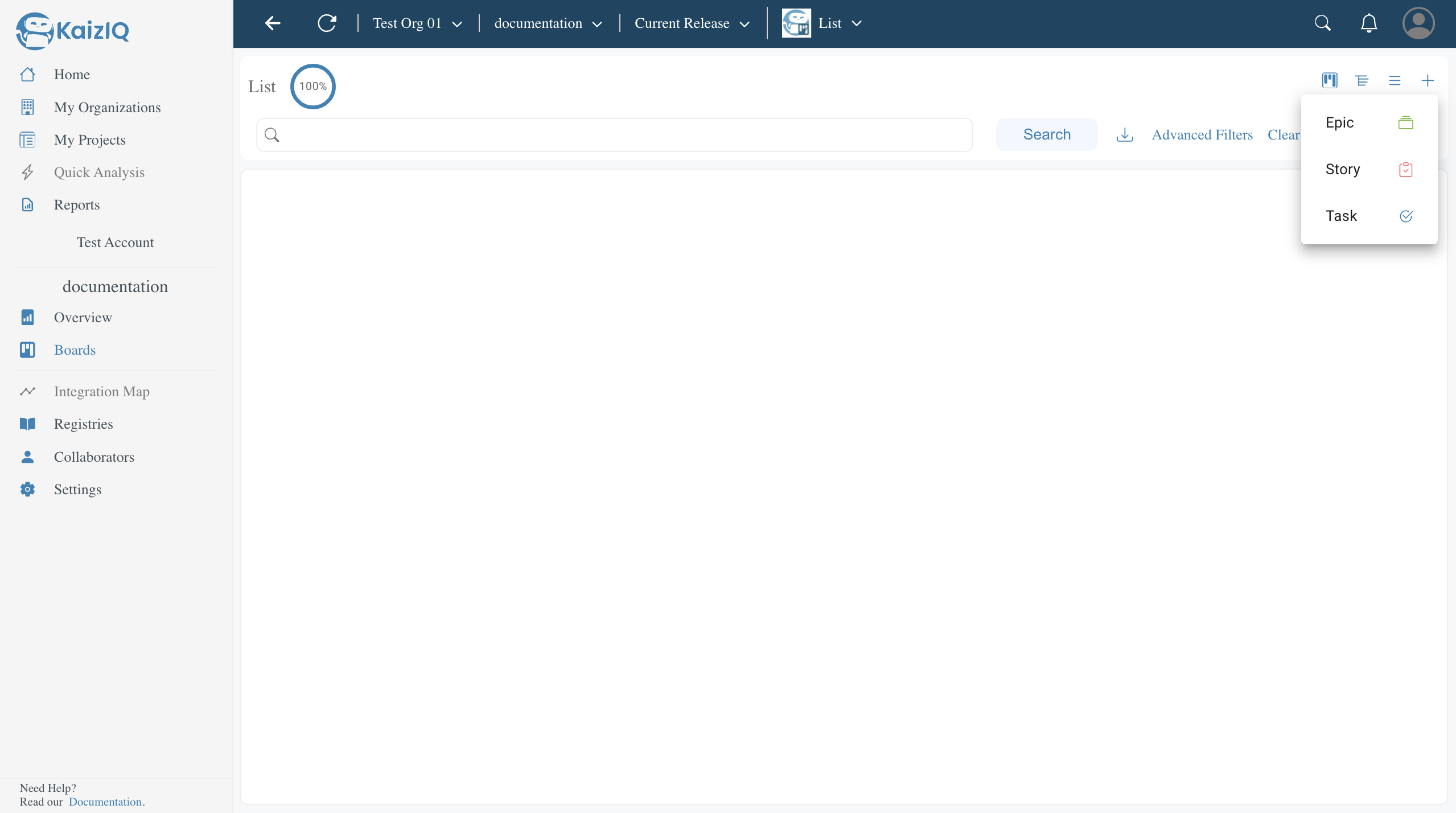
Now you can see the three options of creating tasks. Click on the option you want to create. 1) For epic you will see a popup like this. Fill up the form and click on the "Create" button. In the form you can do many things like assign the task to any of the users in your project, set its priority, set its due date, add attachments, add description and many more.
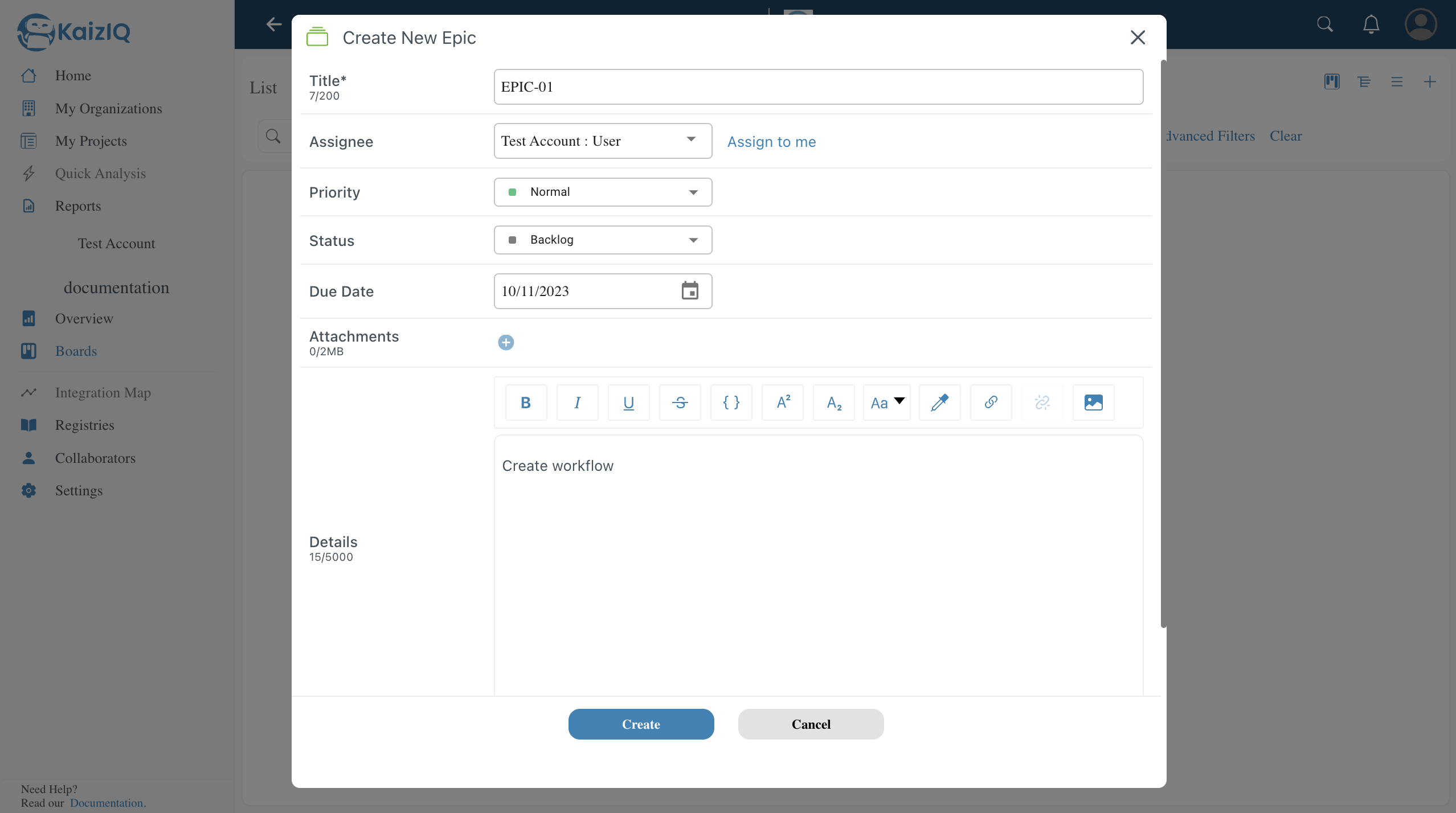
Click on the create button and you will see the epic is created.
2) For story you will see a popup like this. Fill up the form and click on the "Create" button. In the form you can do many things like assign the task to any of the users in your project, connect it with any of the epic, set its priority, set its due date, add attachments, add description and many more.
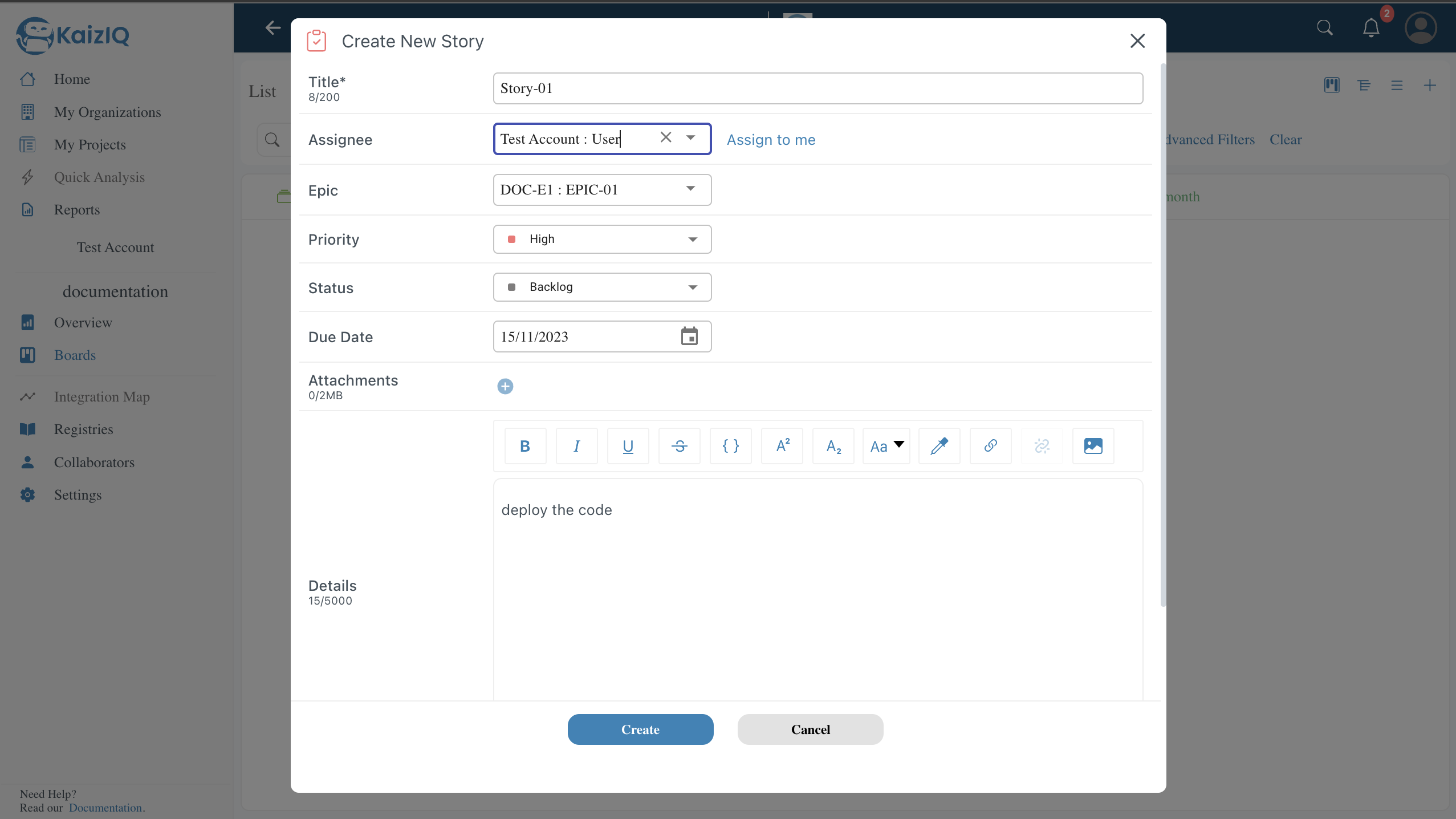
Click on the create button and you will see the story is created.
3) For task you will see a popup like this. Fill up the form and click on the "Create" button. In the form you can do many things like assign the task to any of the users in your project, connect it with any of the story, set its priority, set its due date, add attachments, add description and many more.
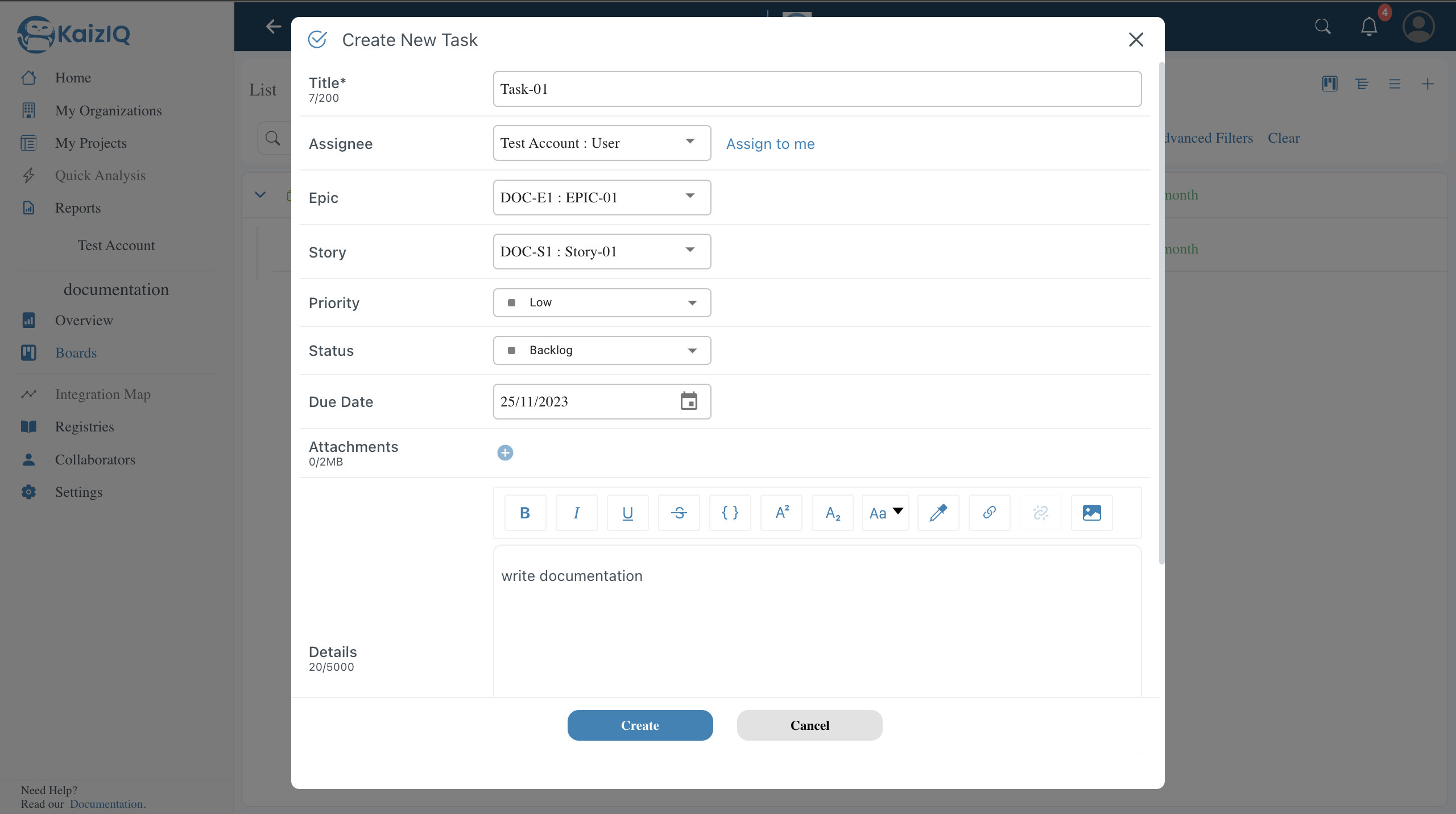
Click on the create button and you will see the task is created.
Boards
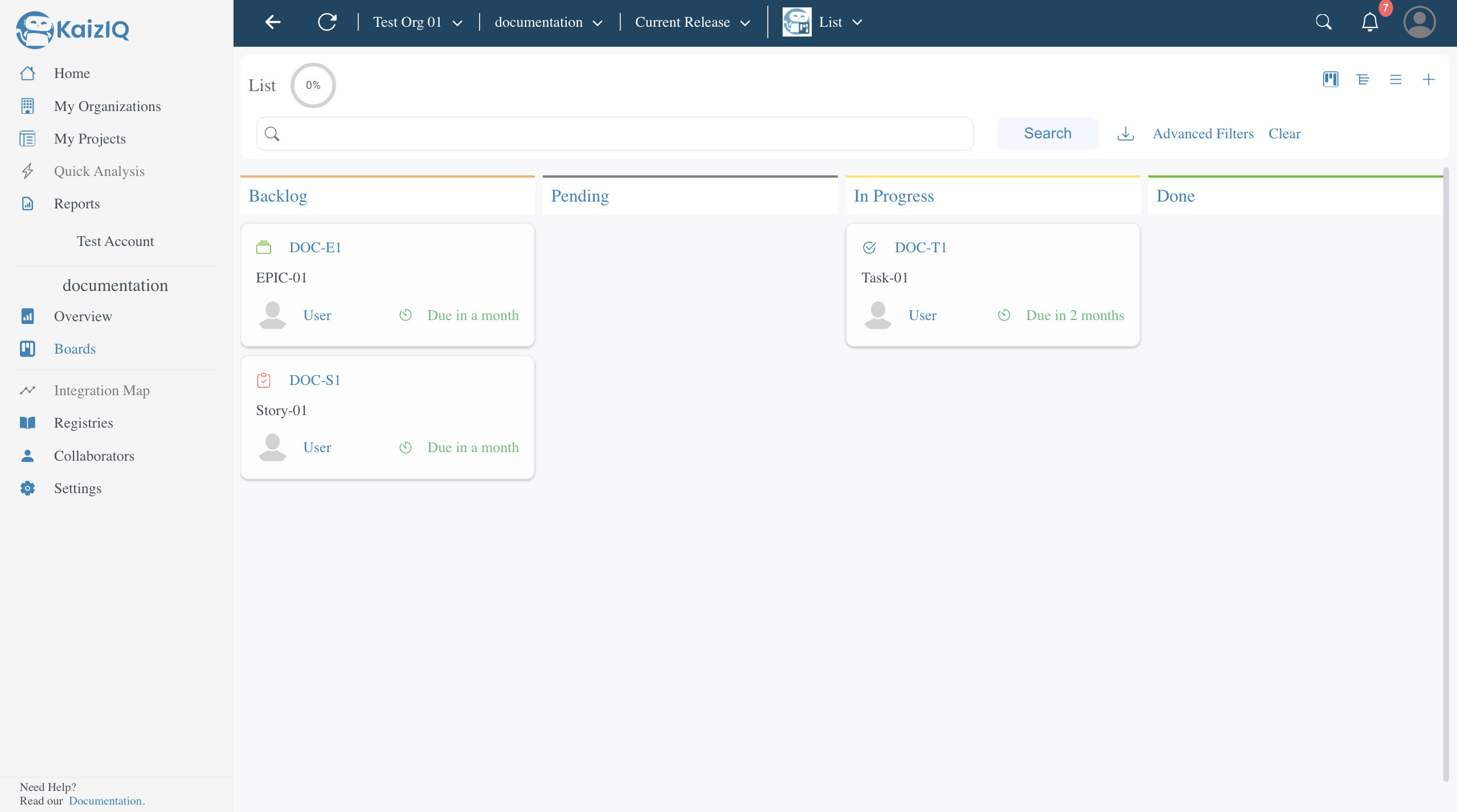
On the top right corner of the page you will see three buttons. Hover over them and you will see the name of the buttons. They are Kanban View, Tree View and List View. Click on any of them to see the tasks in different views.1) Kanban View - Here you can see different columns of your tasks. You can drag and drop your tasks from one column to another. You can also see the details of your tasks by clicking on them.
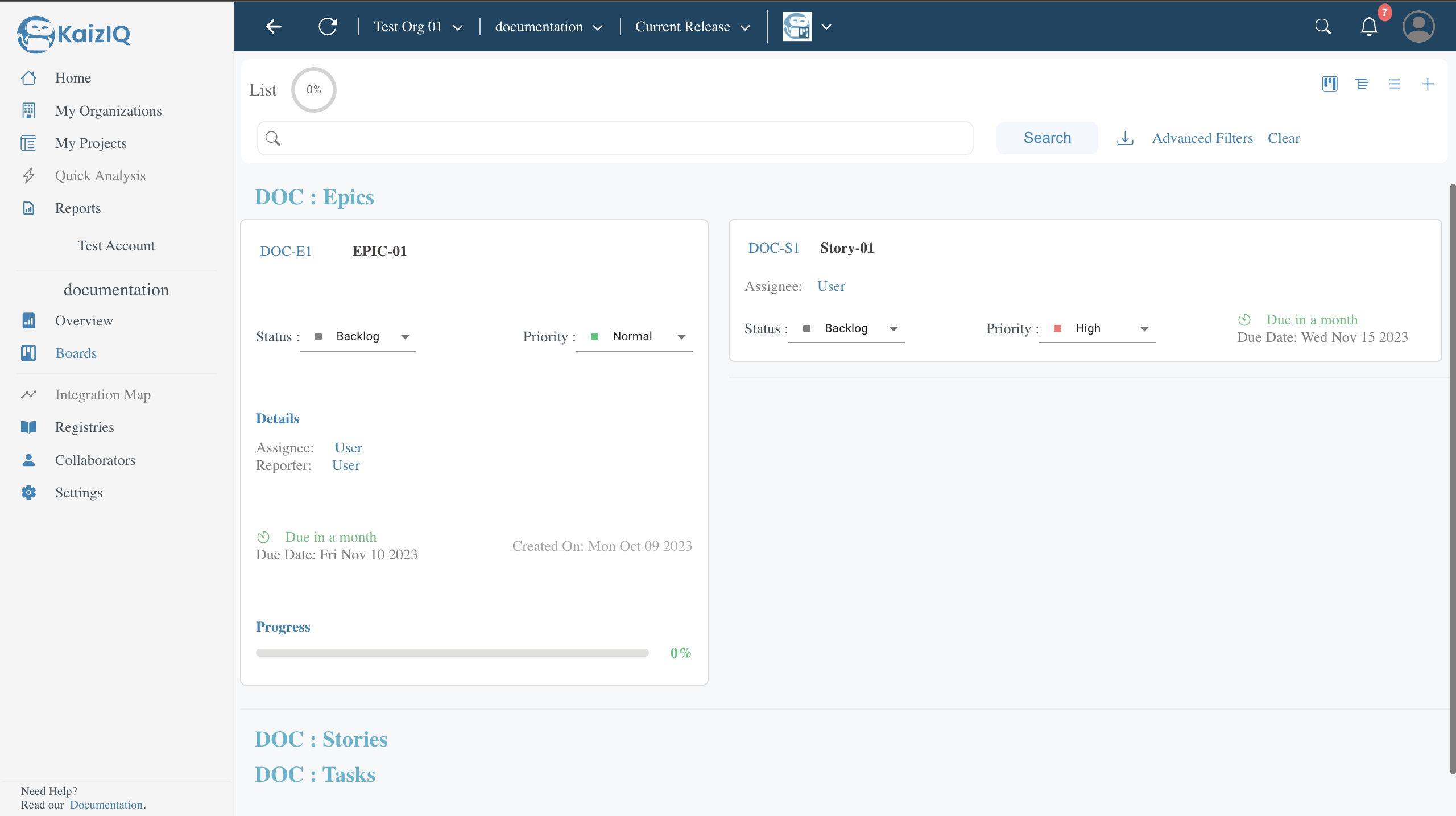
2) Tree View - Here you can see the tasks in a tree structure. You can also see the details of your tasks by clicking on them.
3) List View - Here you can see the tasks in a list structure. You can also see the details of your tasks by clicking on them.
Congratulations! You have successfully read all the features of KaizIQ Manage. Now you can use KaizIQ Manage to manage your projects.
Search Filters
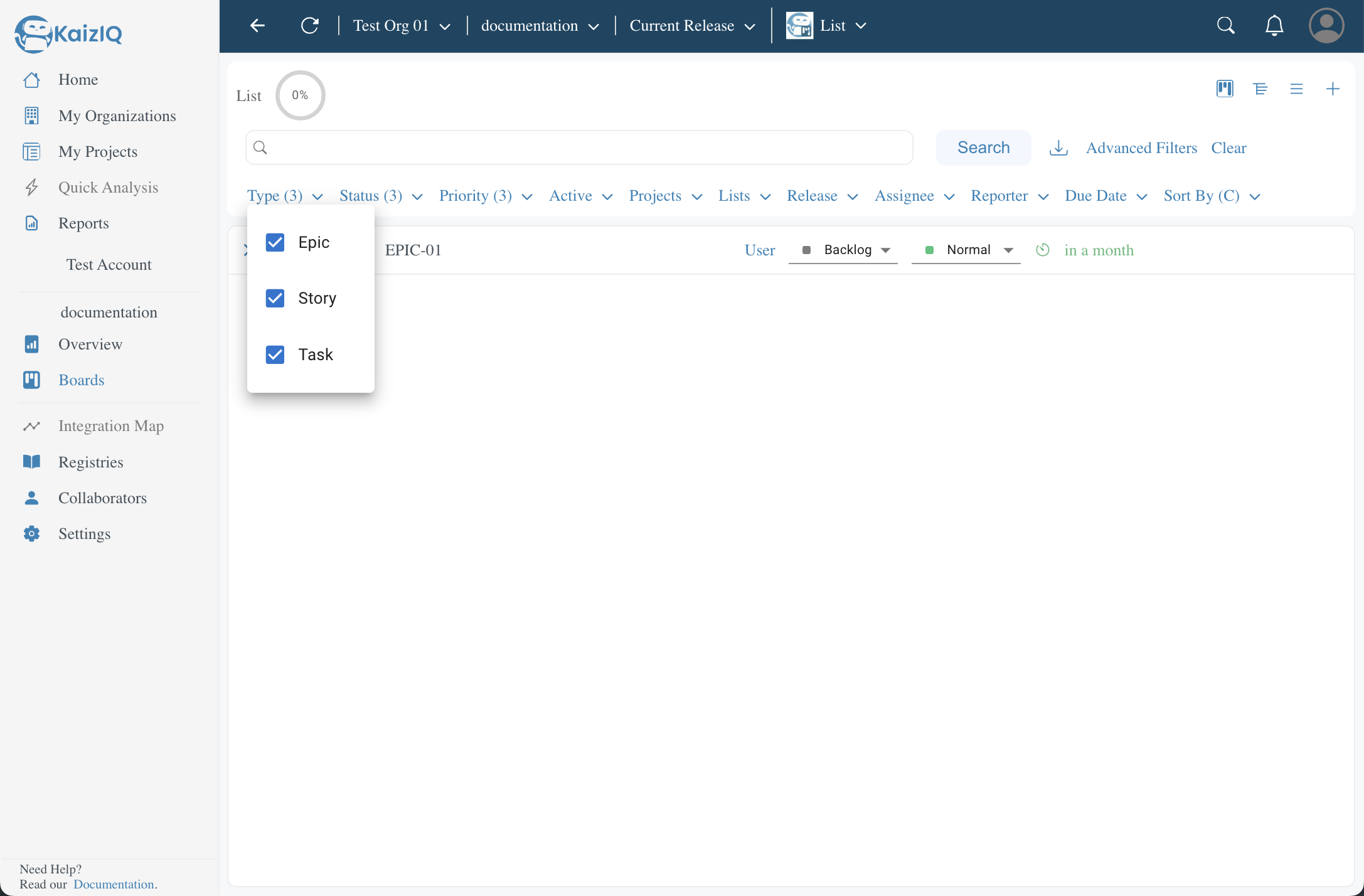
You can search for any task by using the search bar on the on the middle of the page. Click on Advanced Search to see the advanced search options. It has following filters-
Type- You can filter the tasks by their type. You can select multiple types like Epic, Story, Task.
-
Status- You can filter the tasks by their status. You can select multiple status like Backlog, Pending, In Progress, Done.
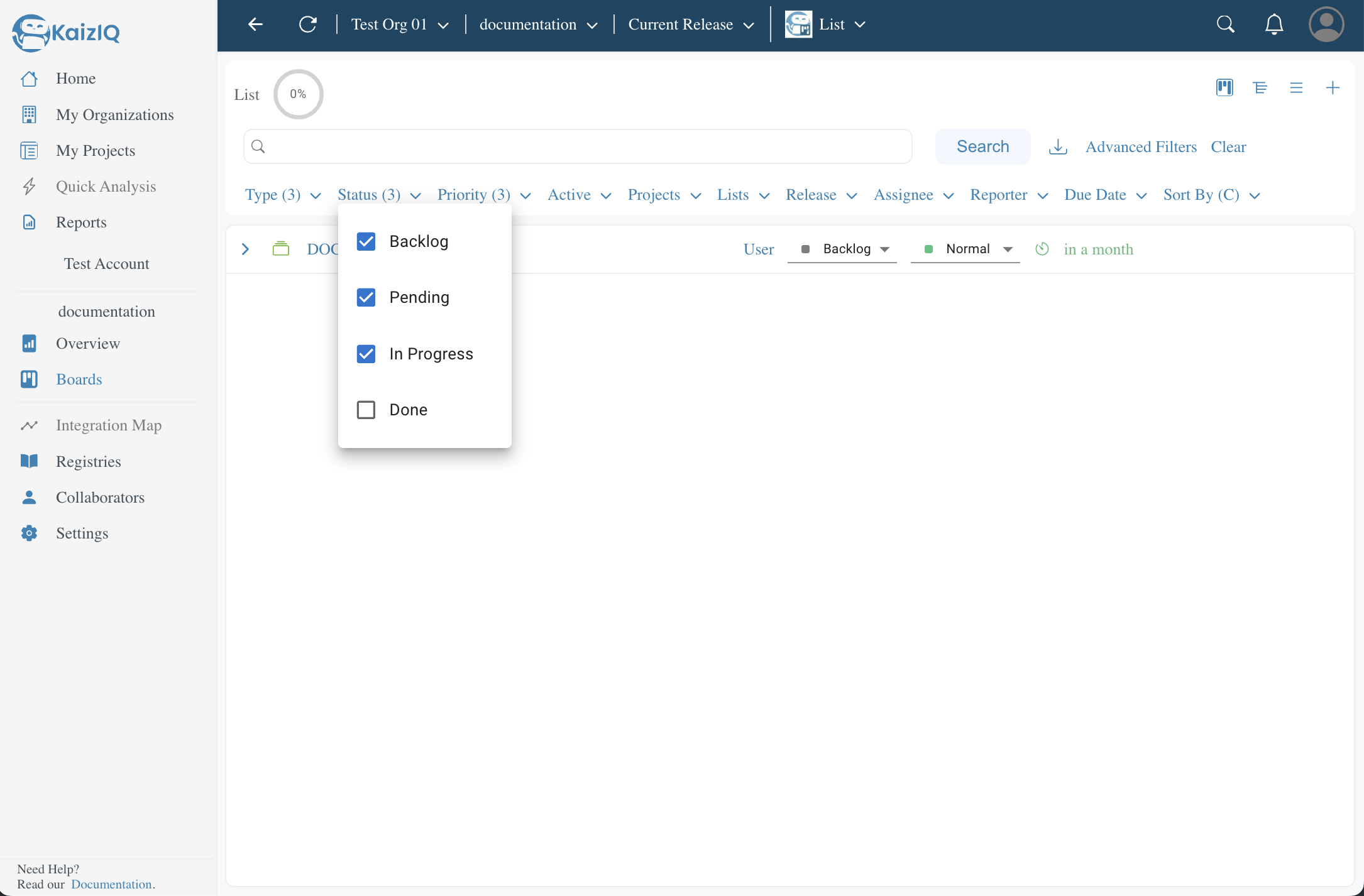
-
Priority- You can filter the tasks by their priority. You can select multiple priorities like Low, Normal, High.
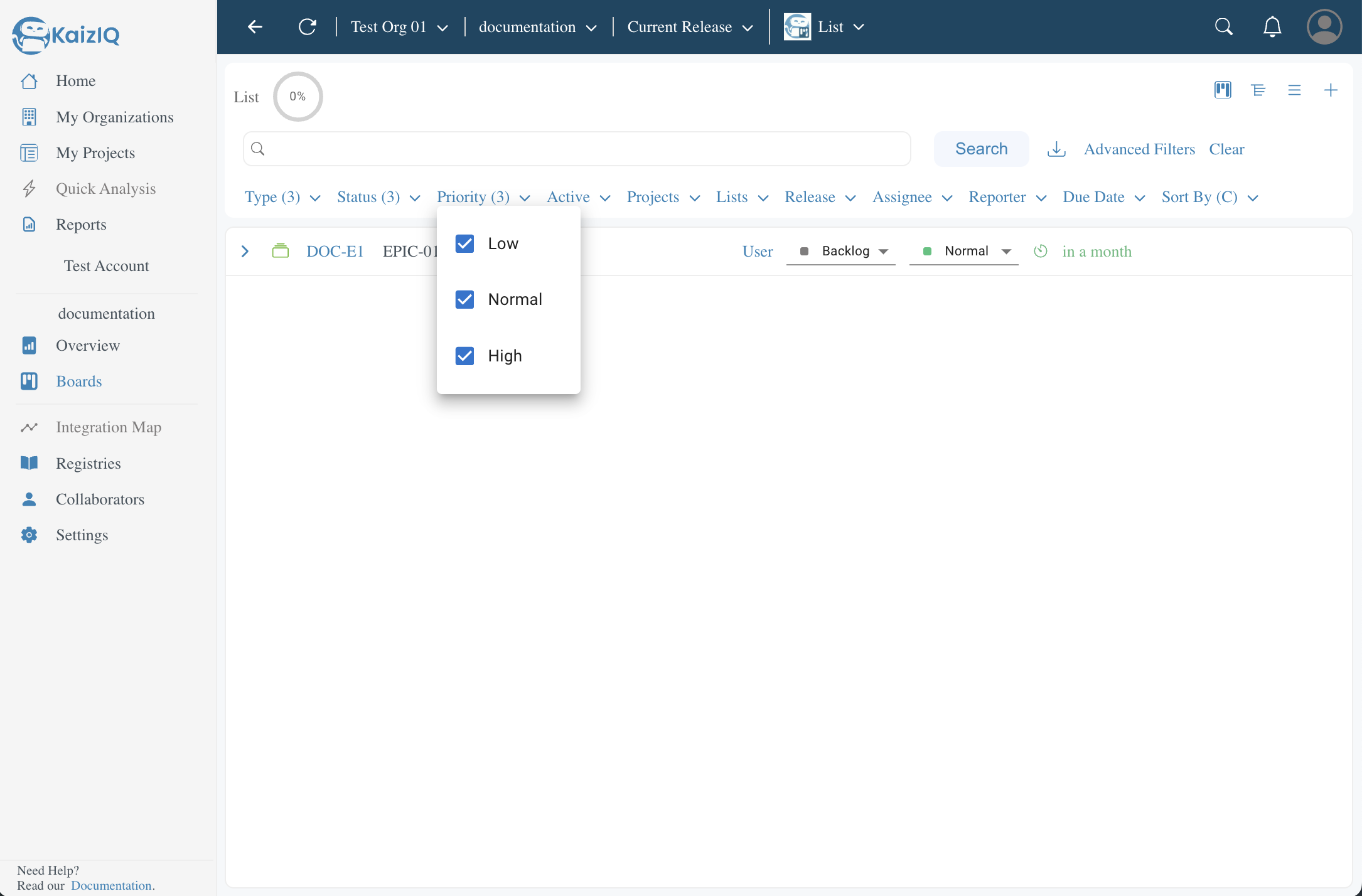
-
Active- You can filter the tasks by their active status. You can select multiple active status like Active, Deleted.
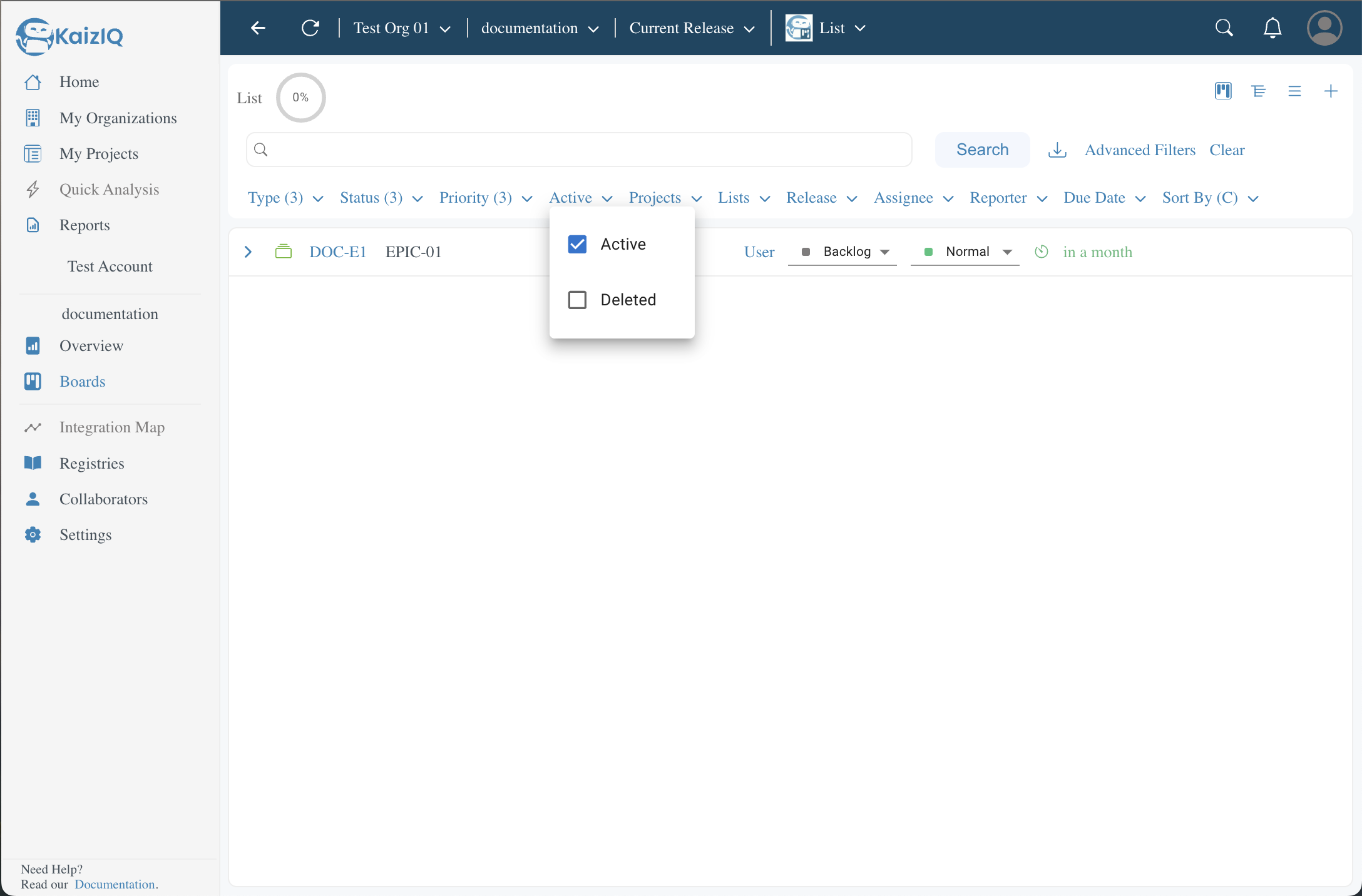
-
Lists- You can filter the tasks by their lists. You can select multiple lists.
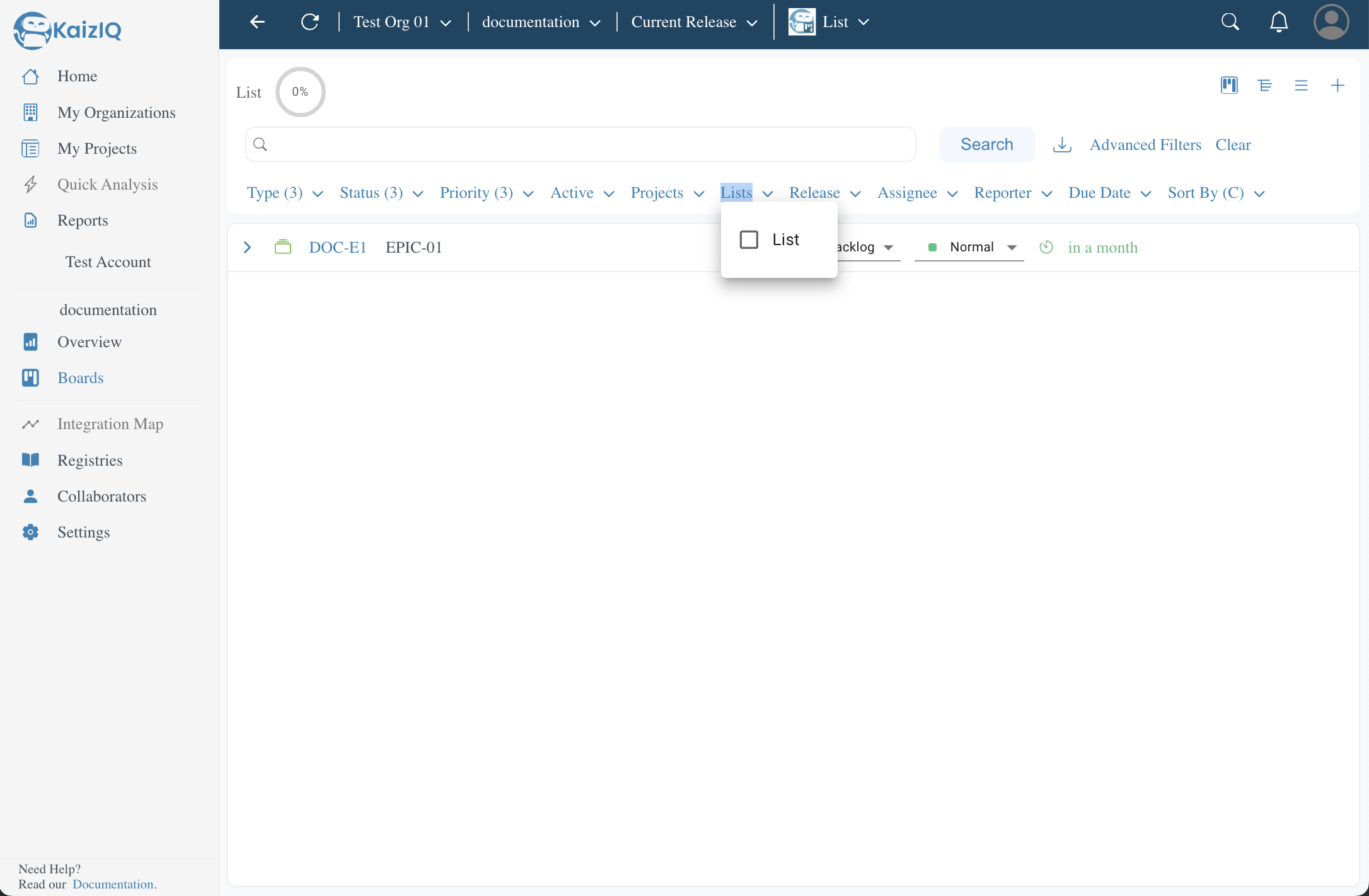
-
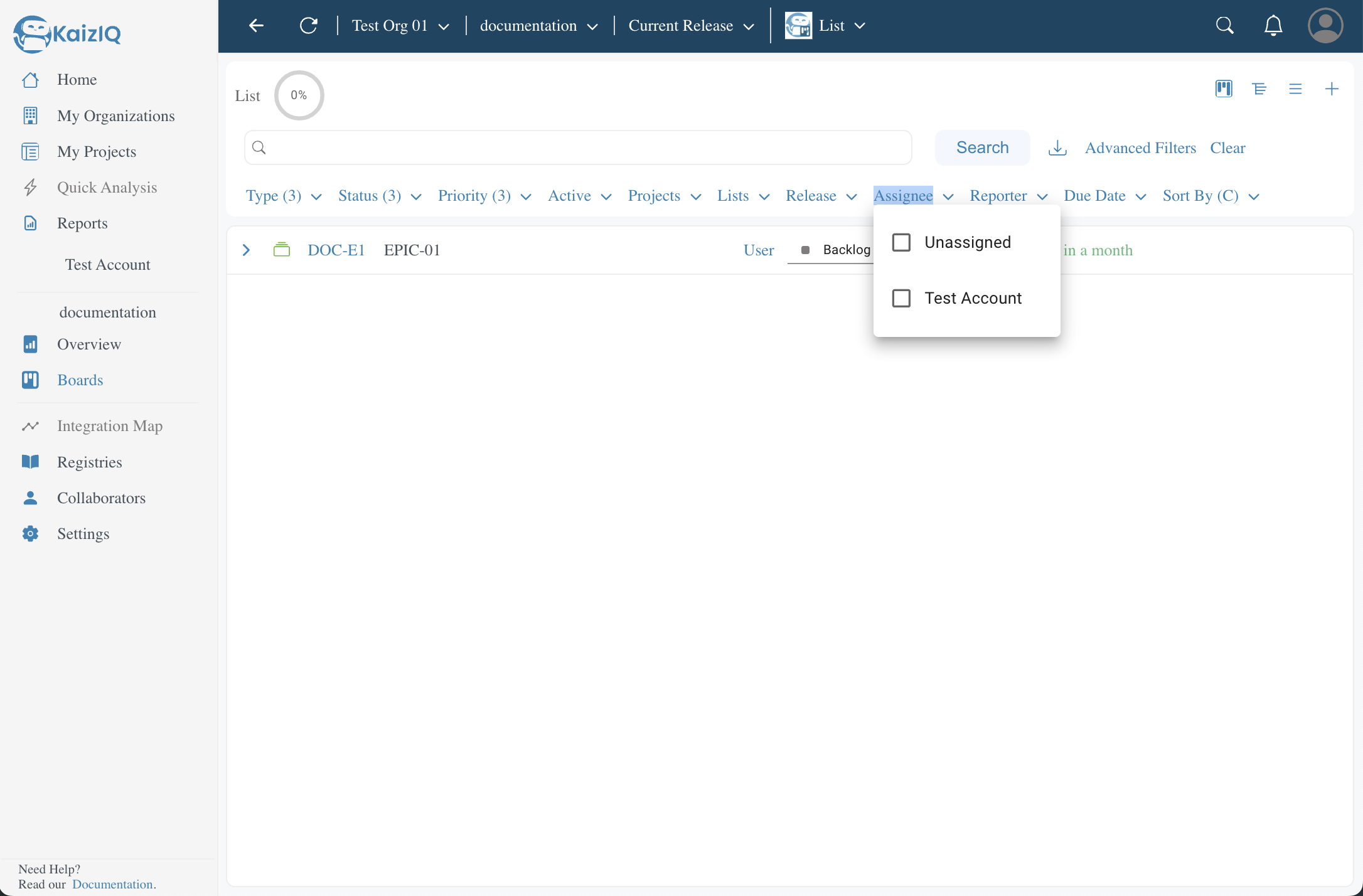
Assignee- You can filter the tasks by their assignee. You can select multiple assignees.
-
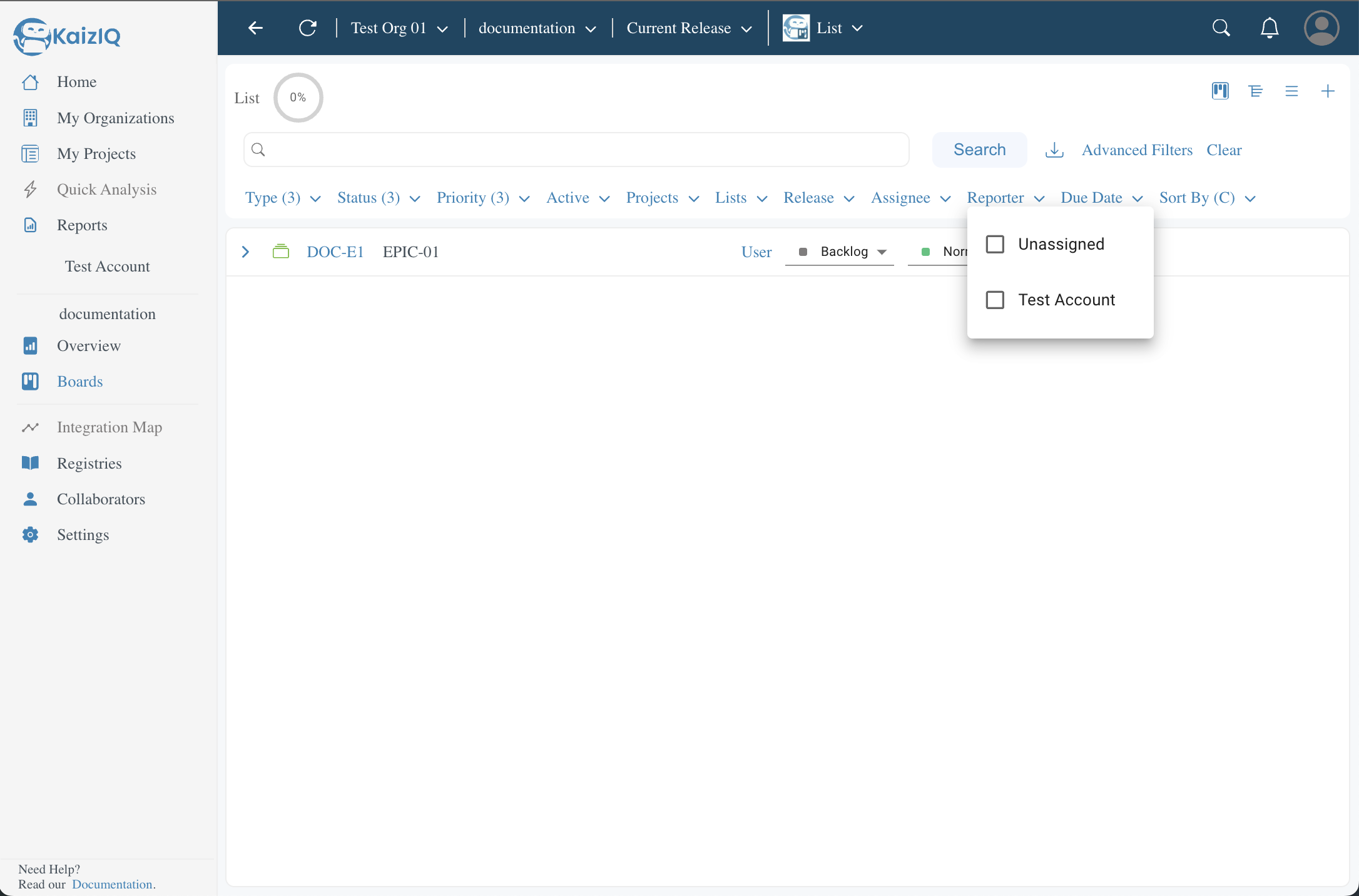
Reporter- You can filter the tasks by their reporter. You can select multiple reporters.
-
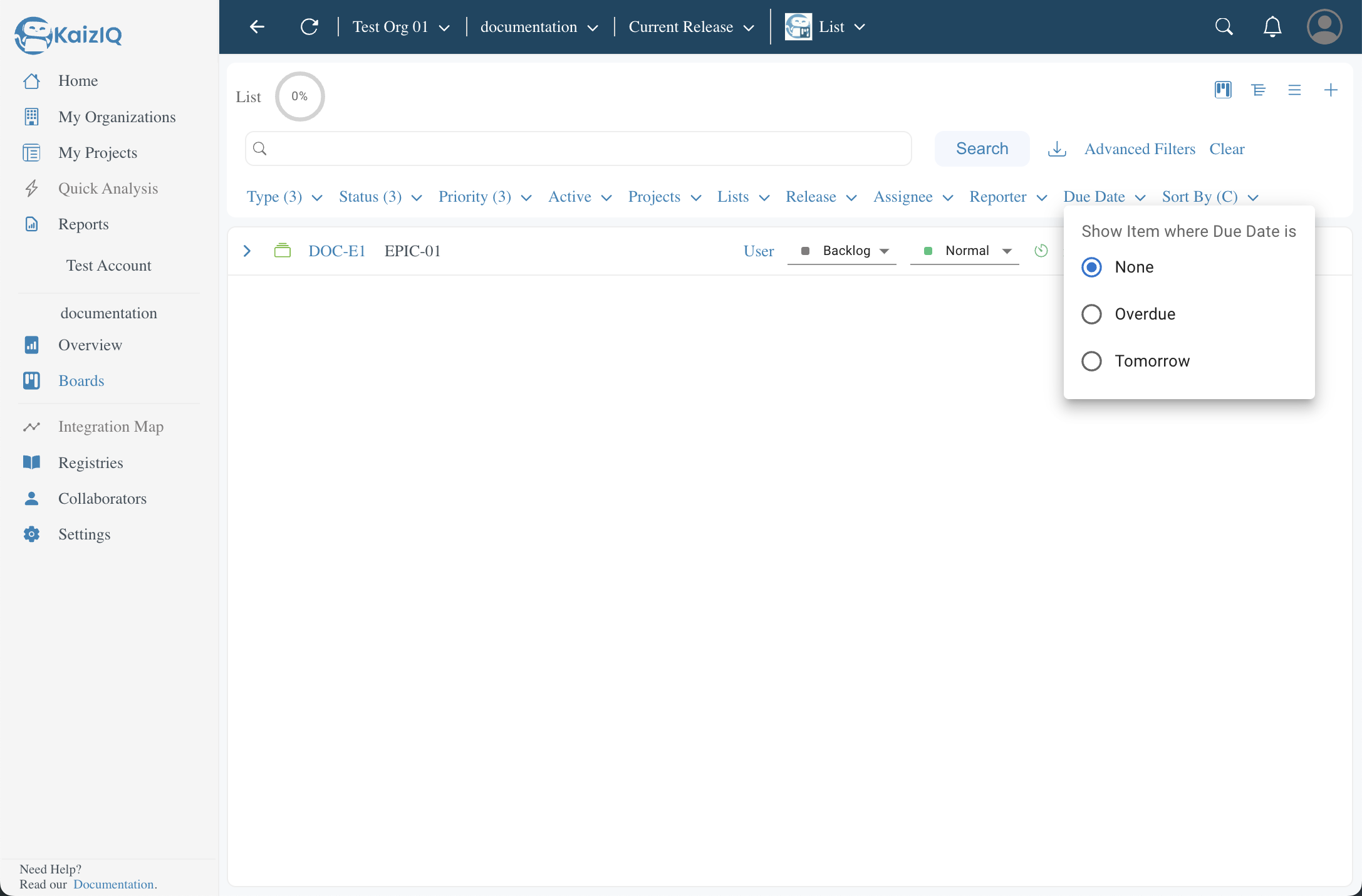
Due Date- You can filter the tasks by their due date. You can select multiple due dates like Overdue, Tomorrow.
-
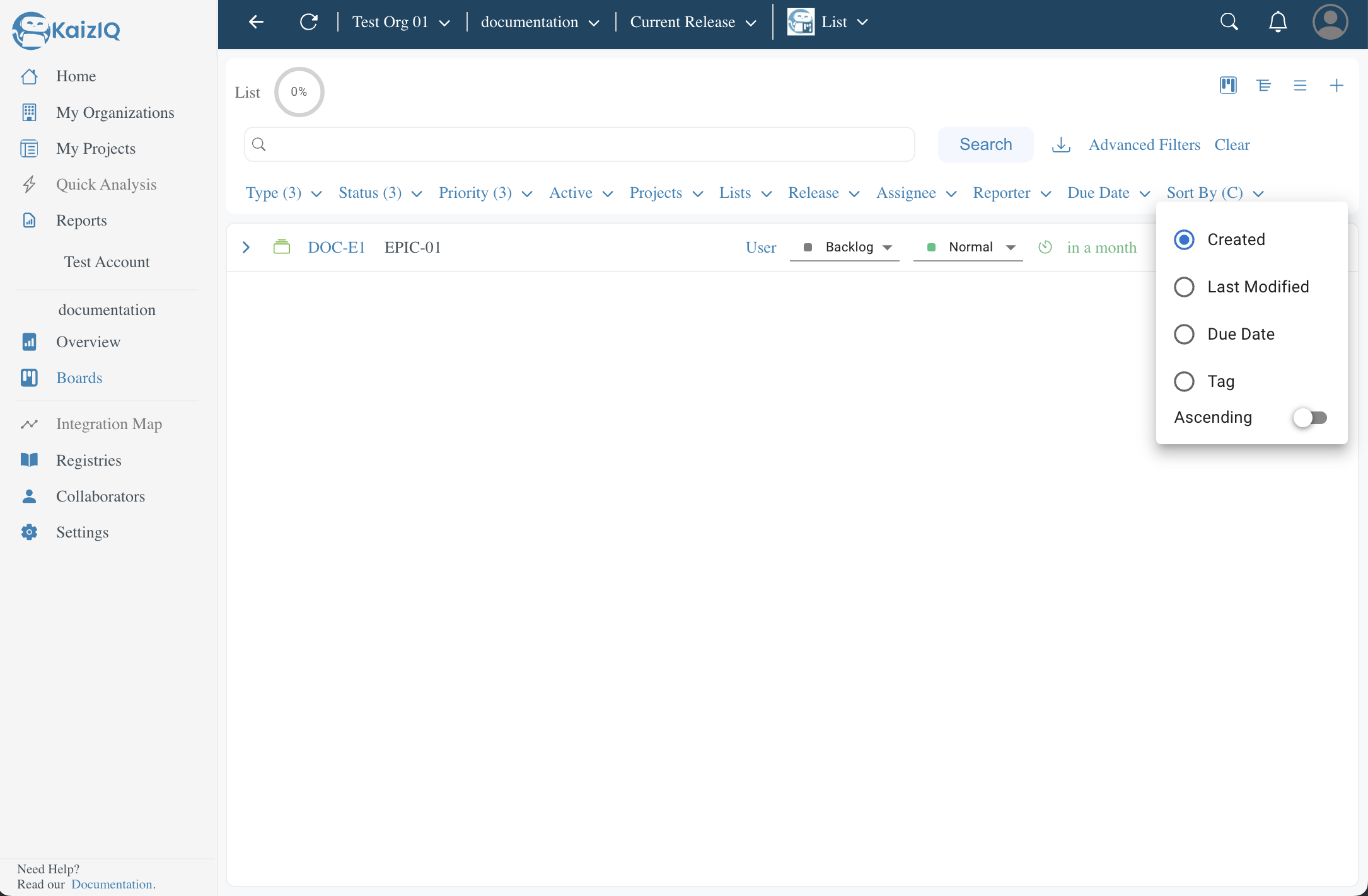
Sort by- You can sort the tasks by their created date, Last Modified, Due Date, Tag, Ascending.
Creating lists
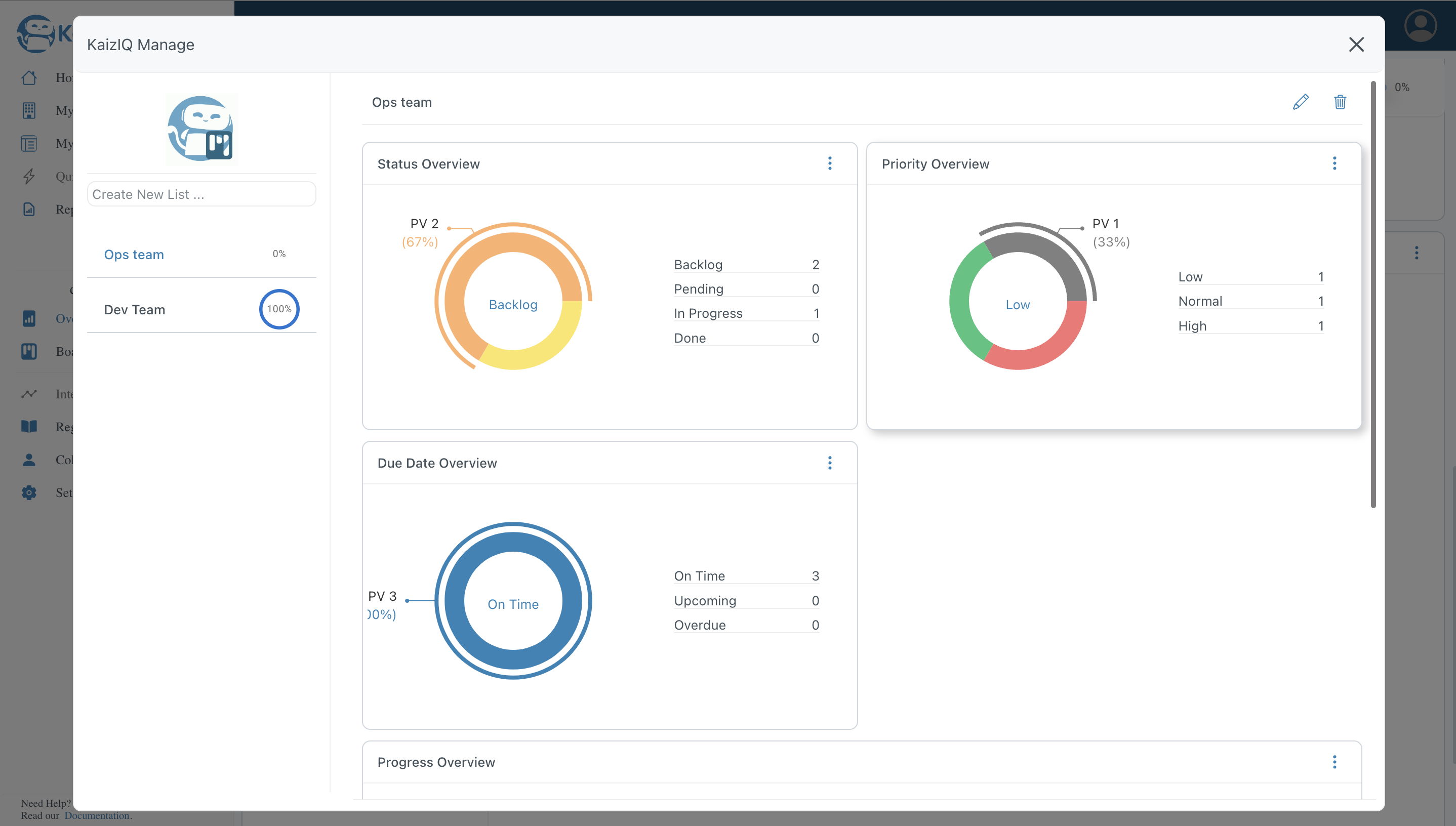
For creating lists, go to the overview section from the side pannel, scroll down and click on View Integration button.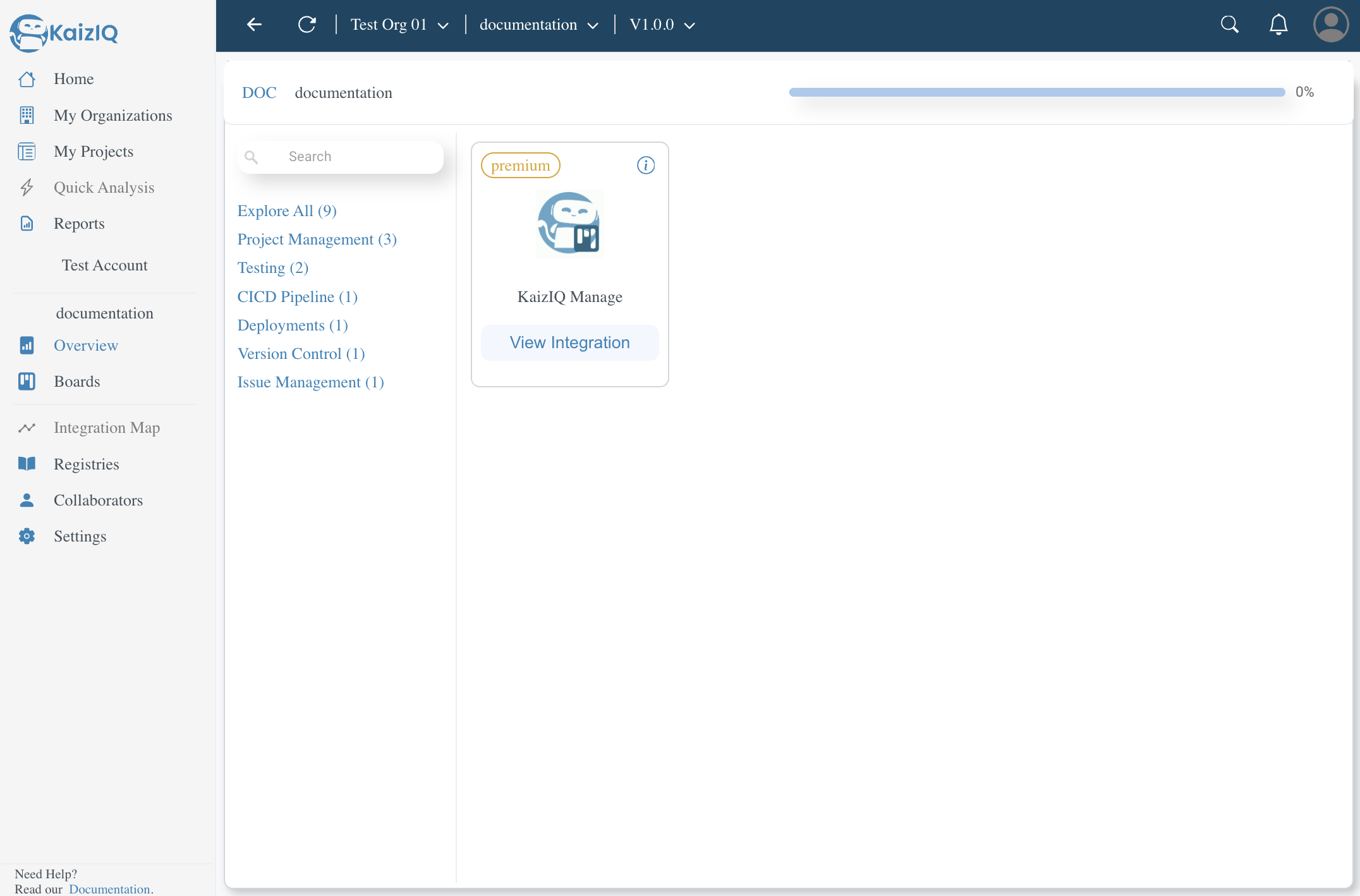
Now you will see a popup like this, click on the Create new list on your side pannel.
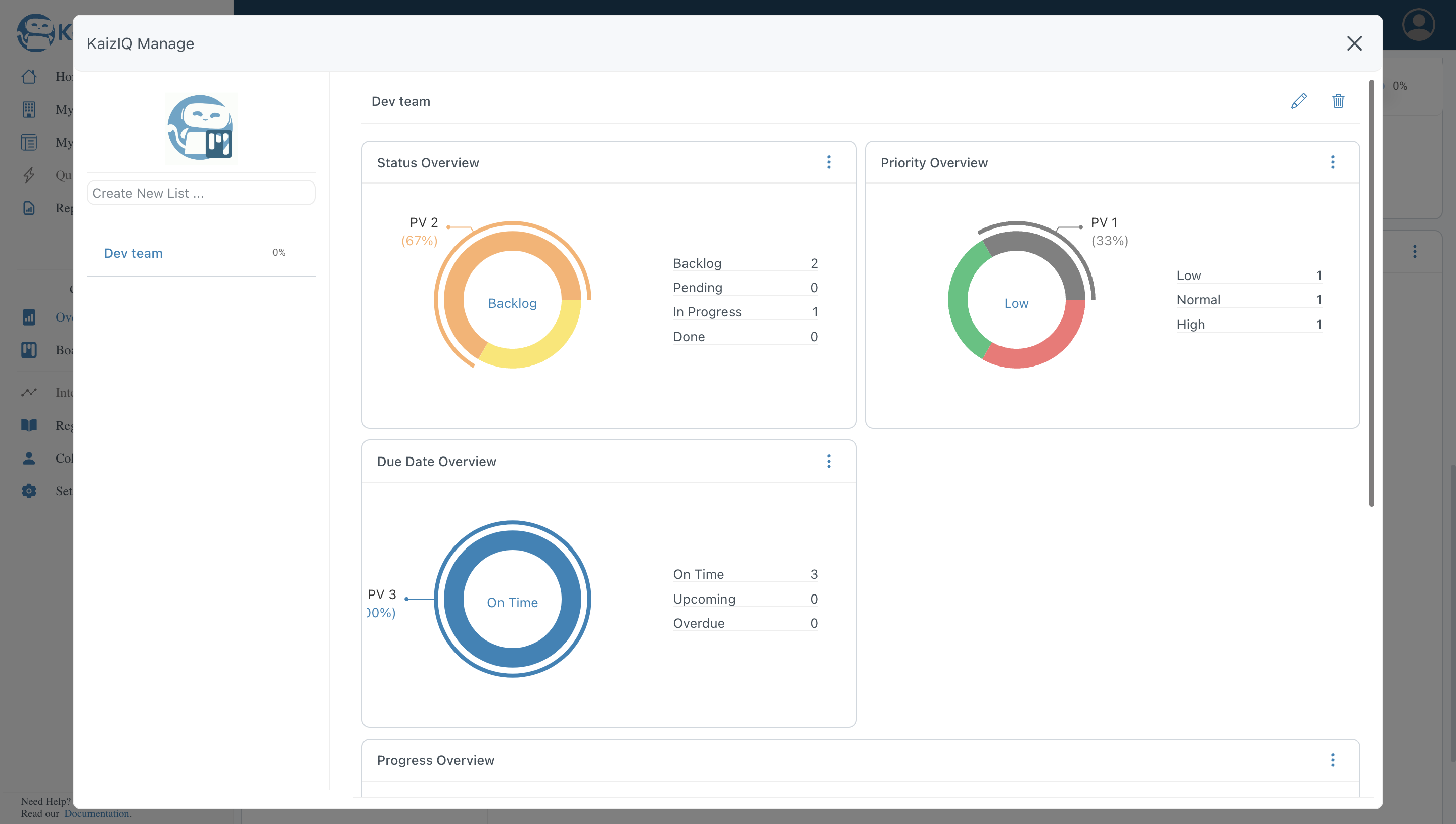
Enter your list name and press "Enter key" on your keyboard.You will see your list is created.
Creating Releases
You can create releases by clicking on the releases section from the top pannel. From the top pannel click on current release and you will see a popup like this.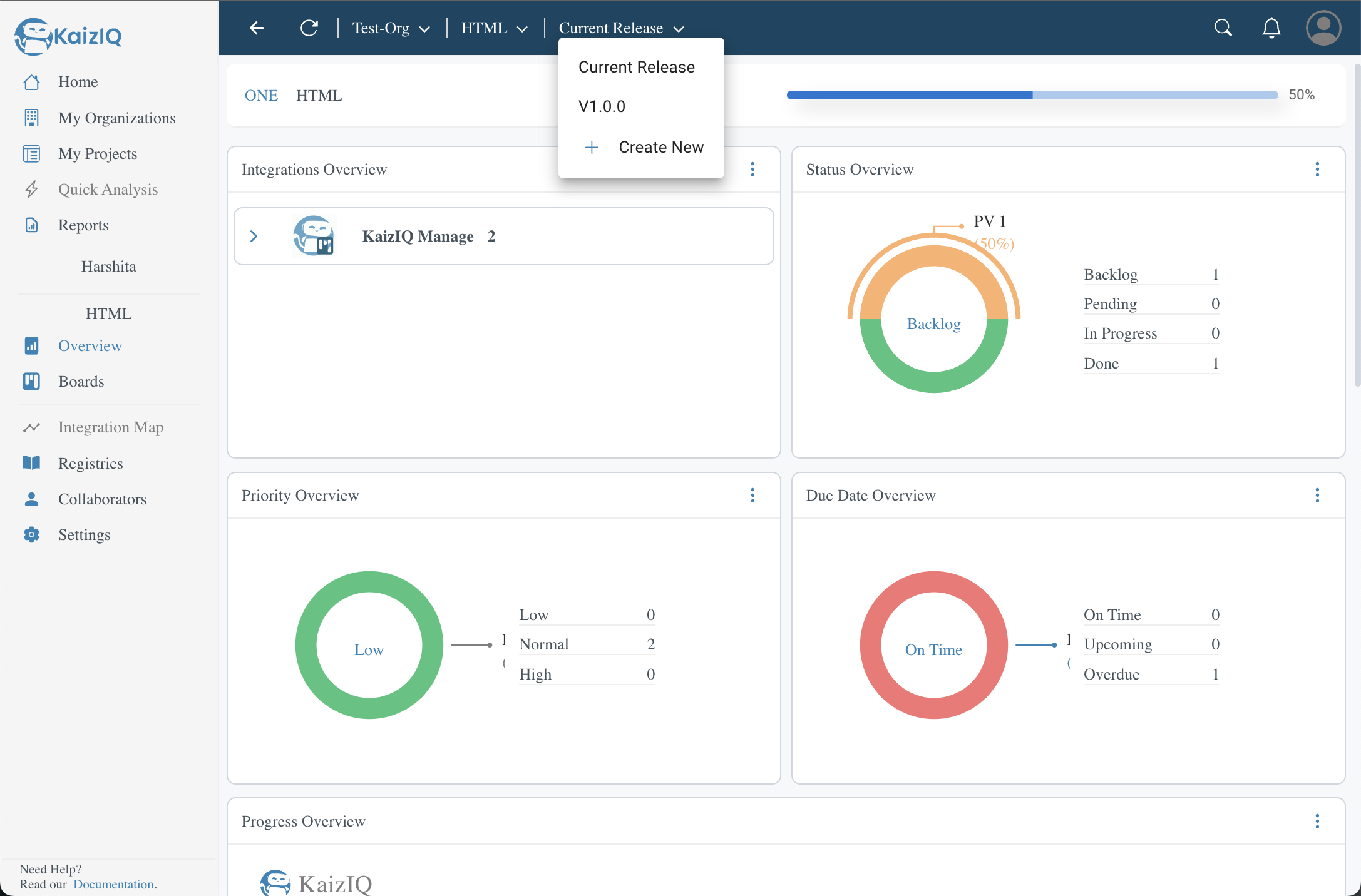
A form will appear, fill up the form and click on the "confirm" button. You will see following options in the form -
-
Major- You can create a major release by clicking on this button. Major releases are the releases which have major changes in the project. -
Minor- You can create a minor release by clicking on this button. Minor releases are the releases which have minor changes in the project. -
Patch- You can create a patch release by clicking on this button. Patch releases are the releases which have bug fixes in the project. -
Custom- You can create a custom release by clicking on this button. Custom releases are the releases which have custom changes in the project.
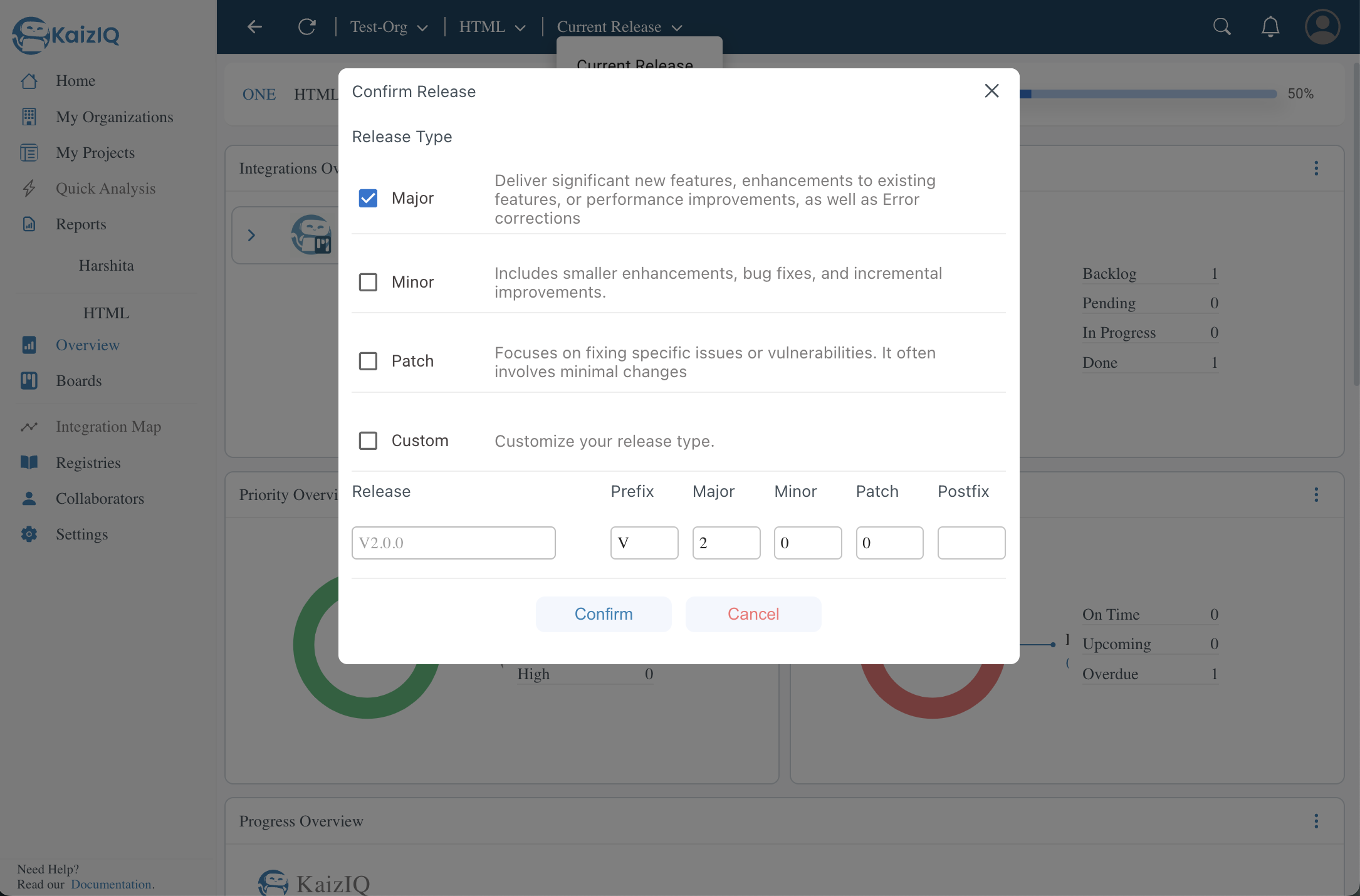
You may now check your release and different versions of your release from the top pannel.

