KaizIQ Test
Connect Now
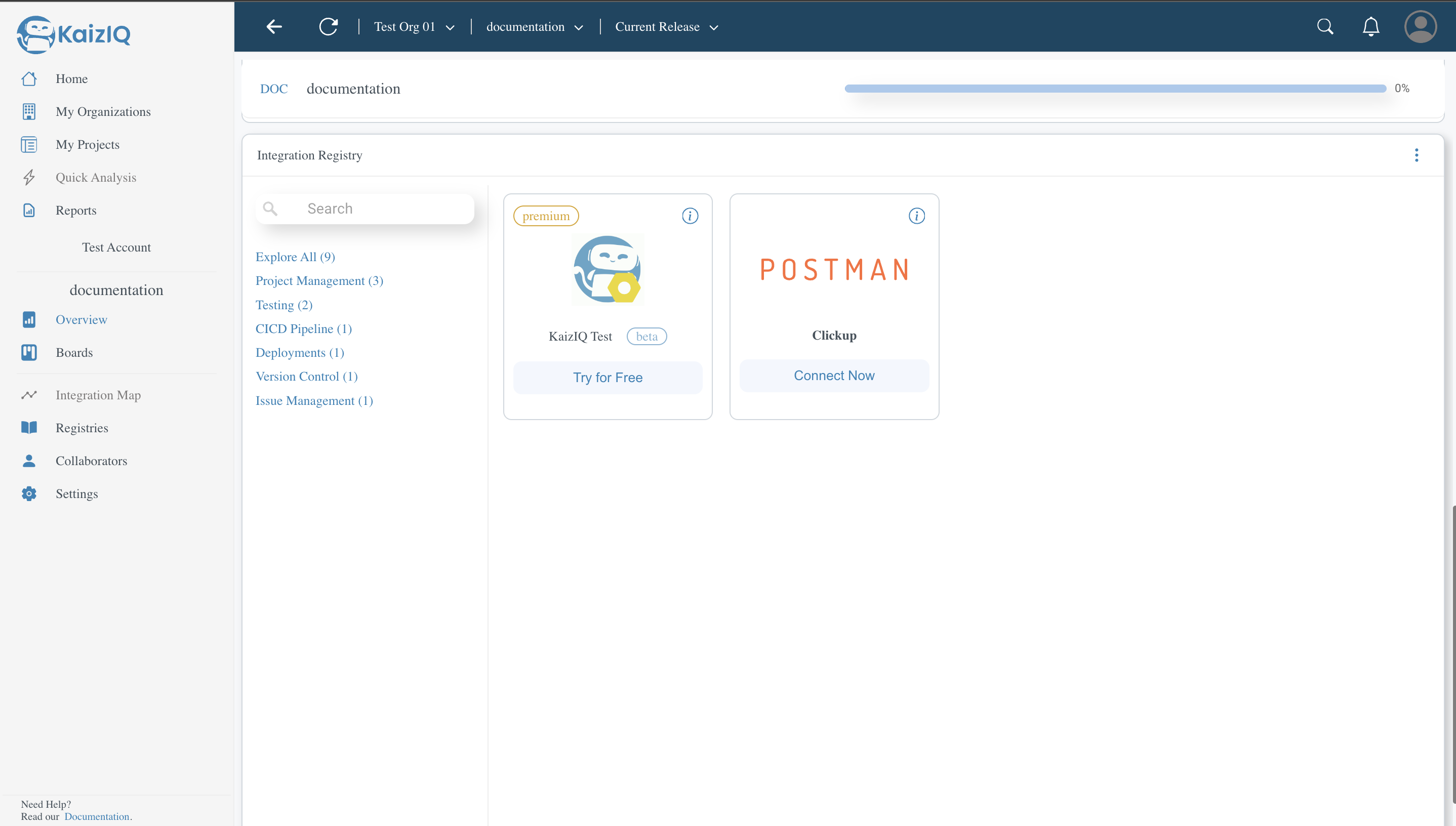
Follow the steps below to get connected with KaizIQ Test. First, you need to go to the project.Now, go to the overview page, scroll to the bottom click on testing and click on the "Try for free" button.
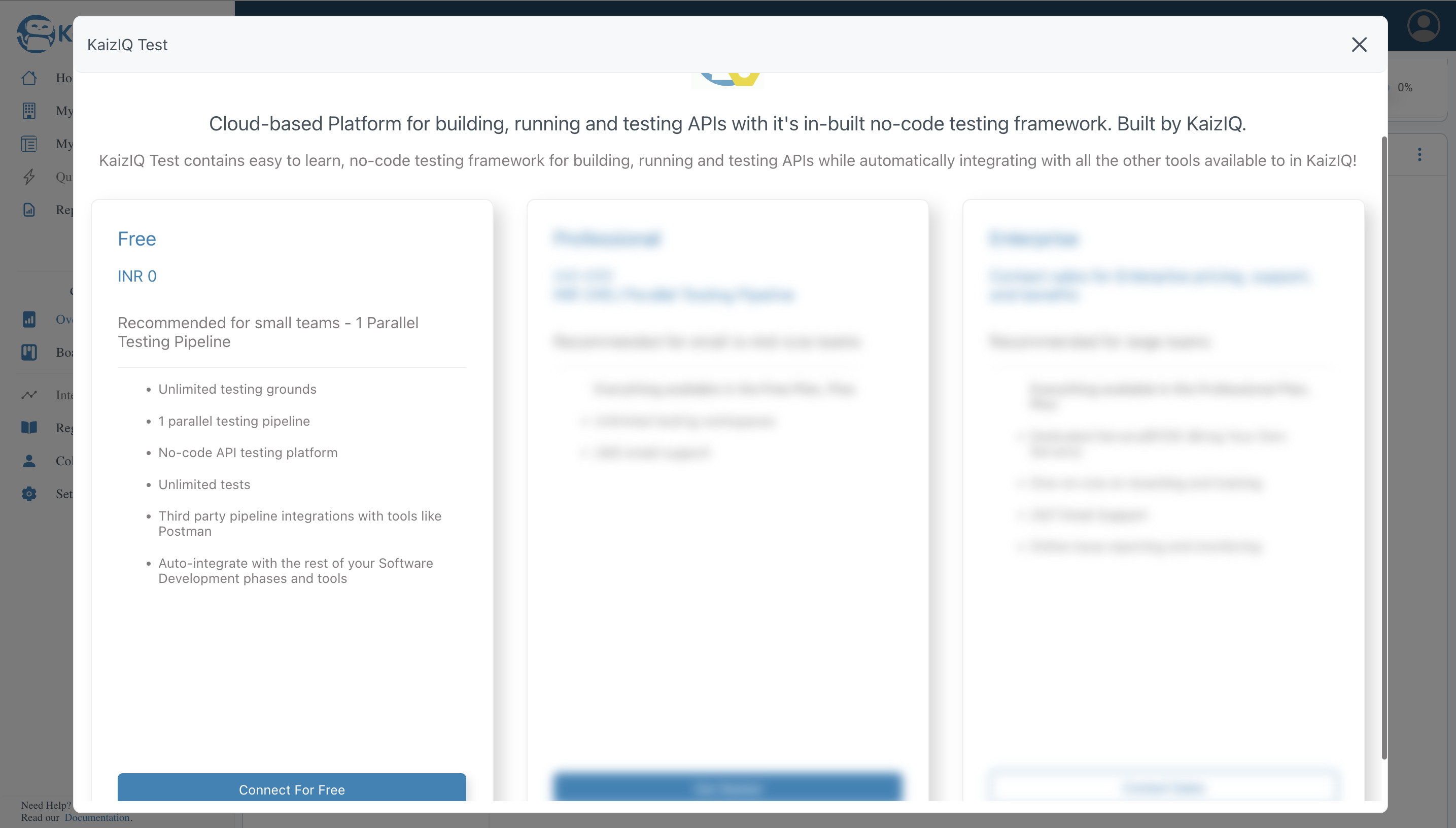
Then, you will be redirected to the KaizIQ Test page. Click on the "Connect for free" button.
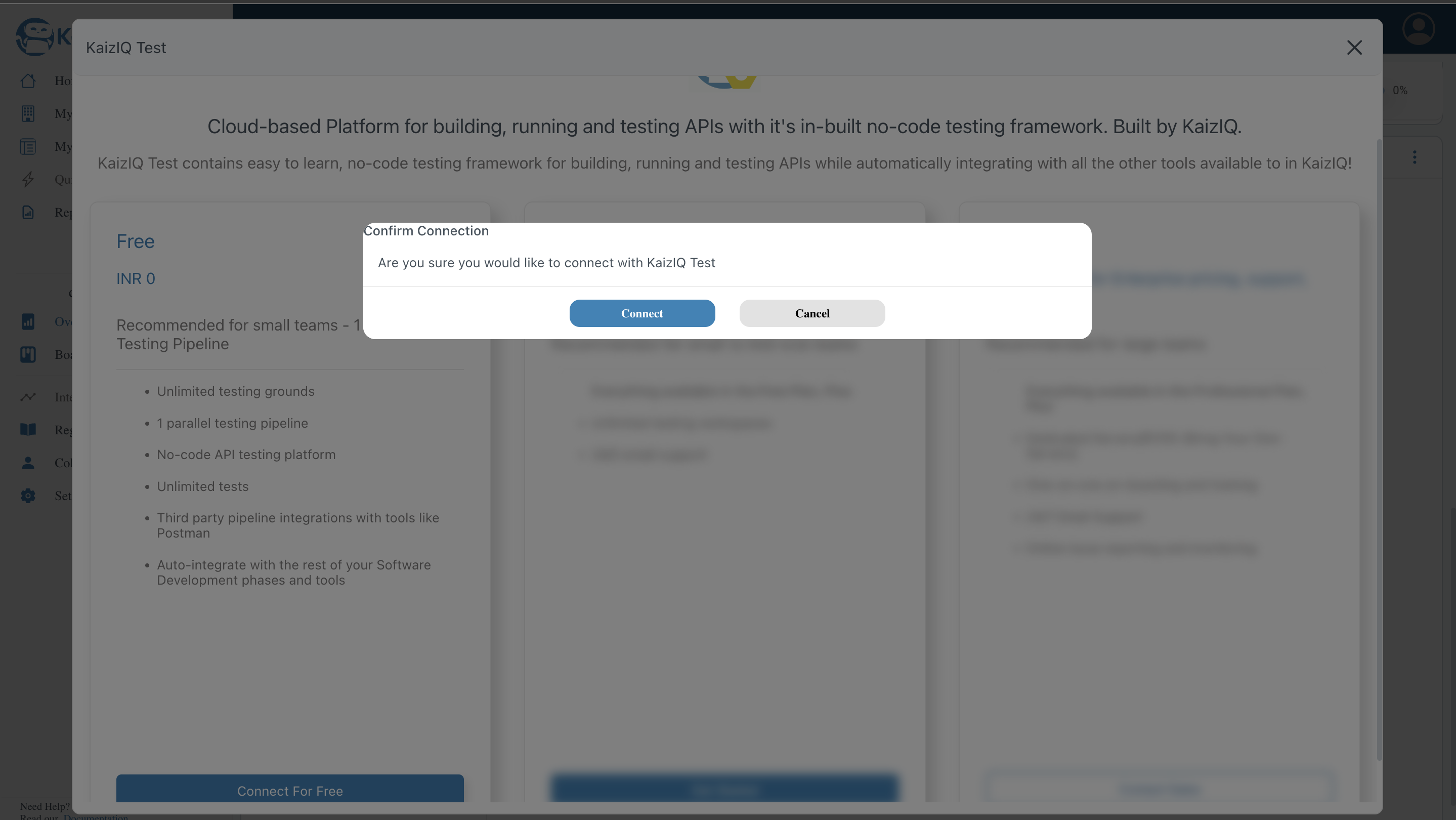
A confirmation popup will appear, click on the "Connect" button.
Then, you will be redirected to the overview page.
View Testing
On the side pannel, click on the "Testing" button. Then, you will be redirected to the KaizIQ Test page.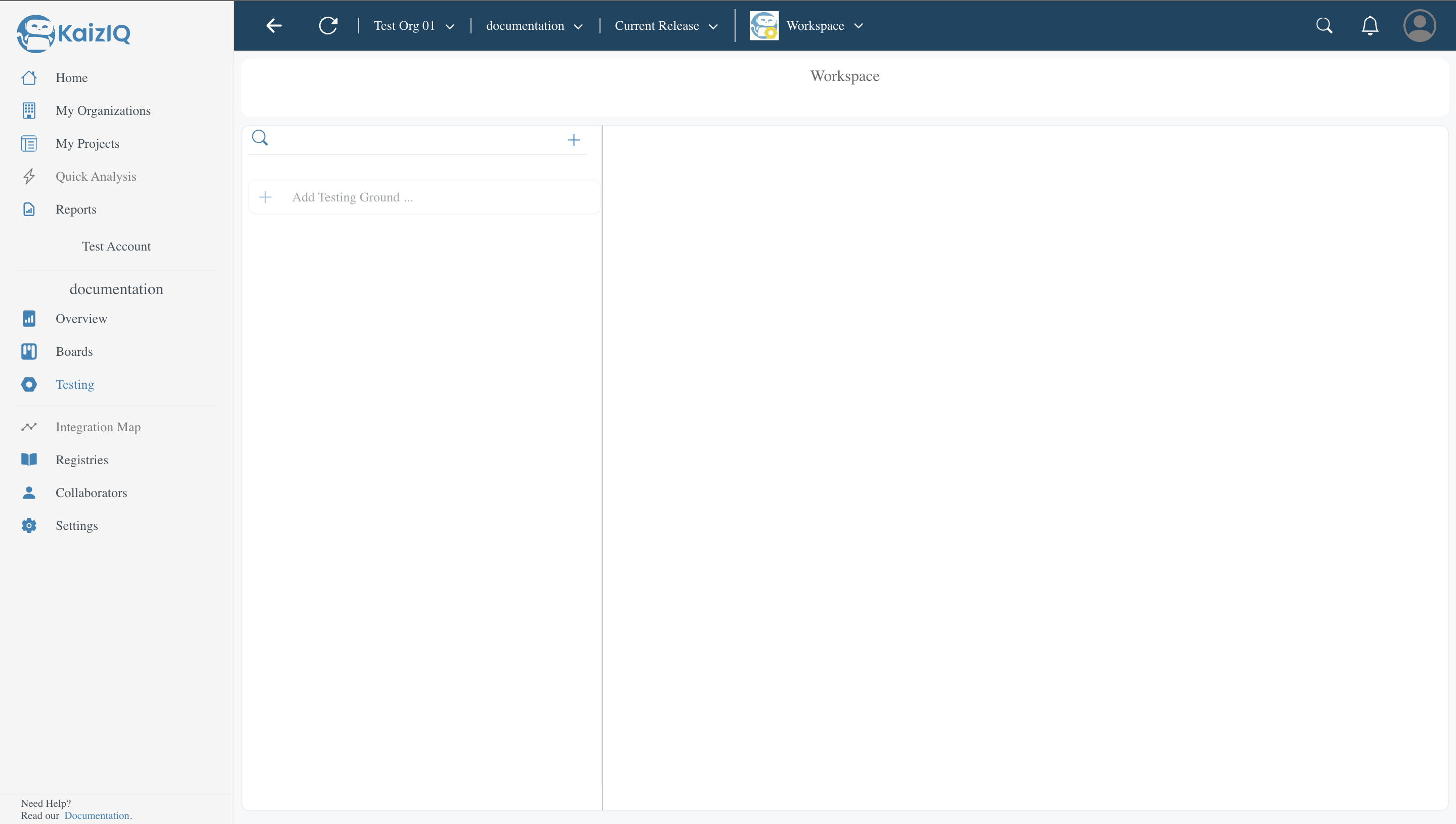
Create Test
Click on the "+" button to create a new test. A popup will appear, fill the form for example: We have named the test as subtask1, and click on the "Create" button.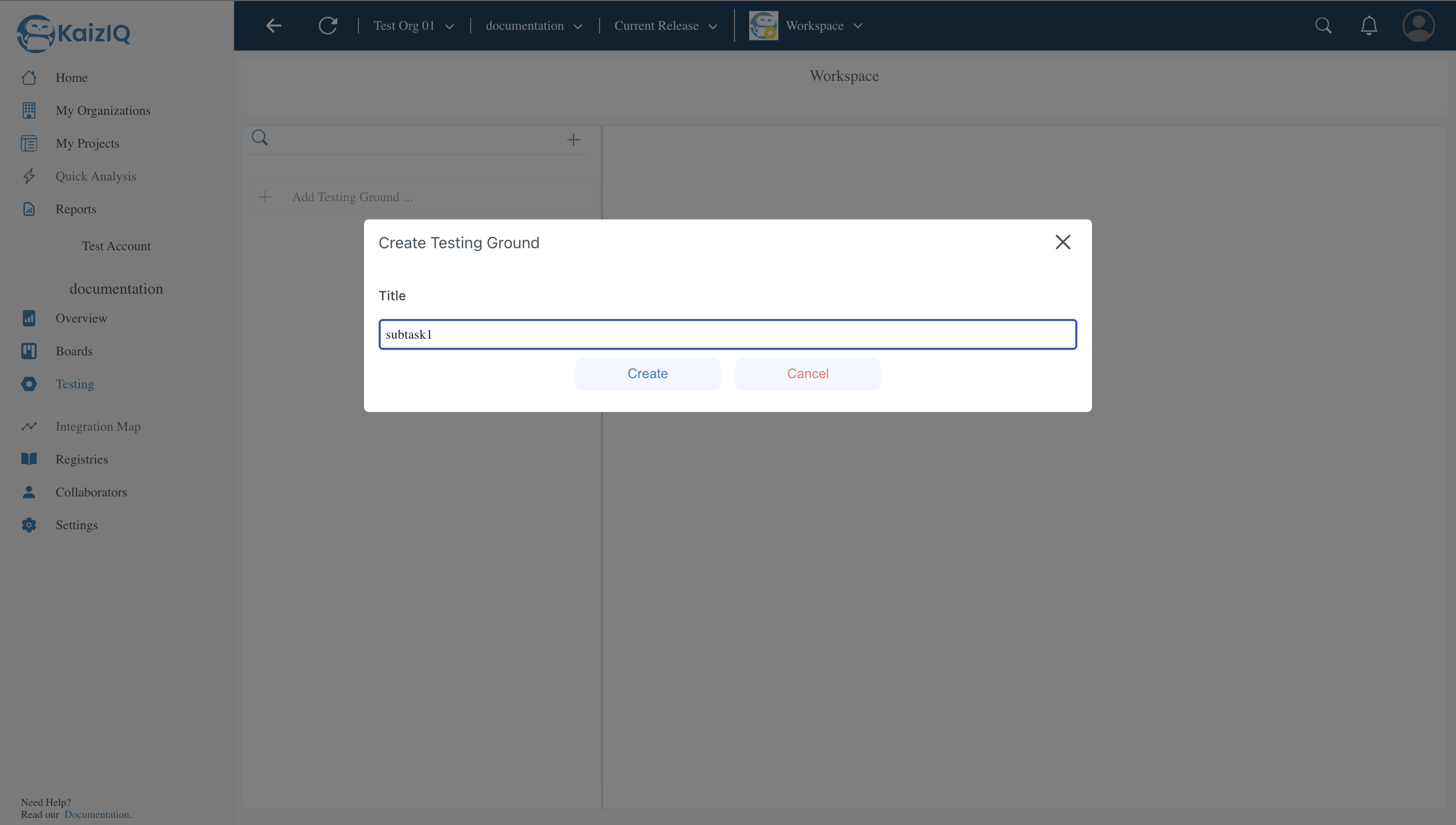
A Testing will be created and you will be redirected to the testing page. Click on the ">" icon you will see the details.
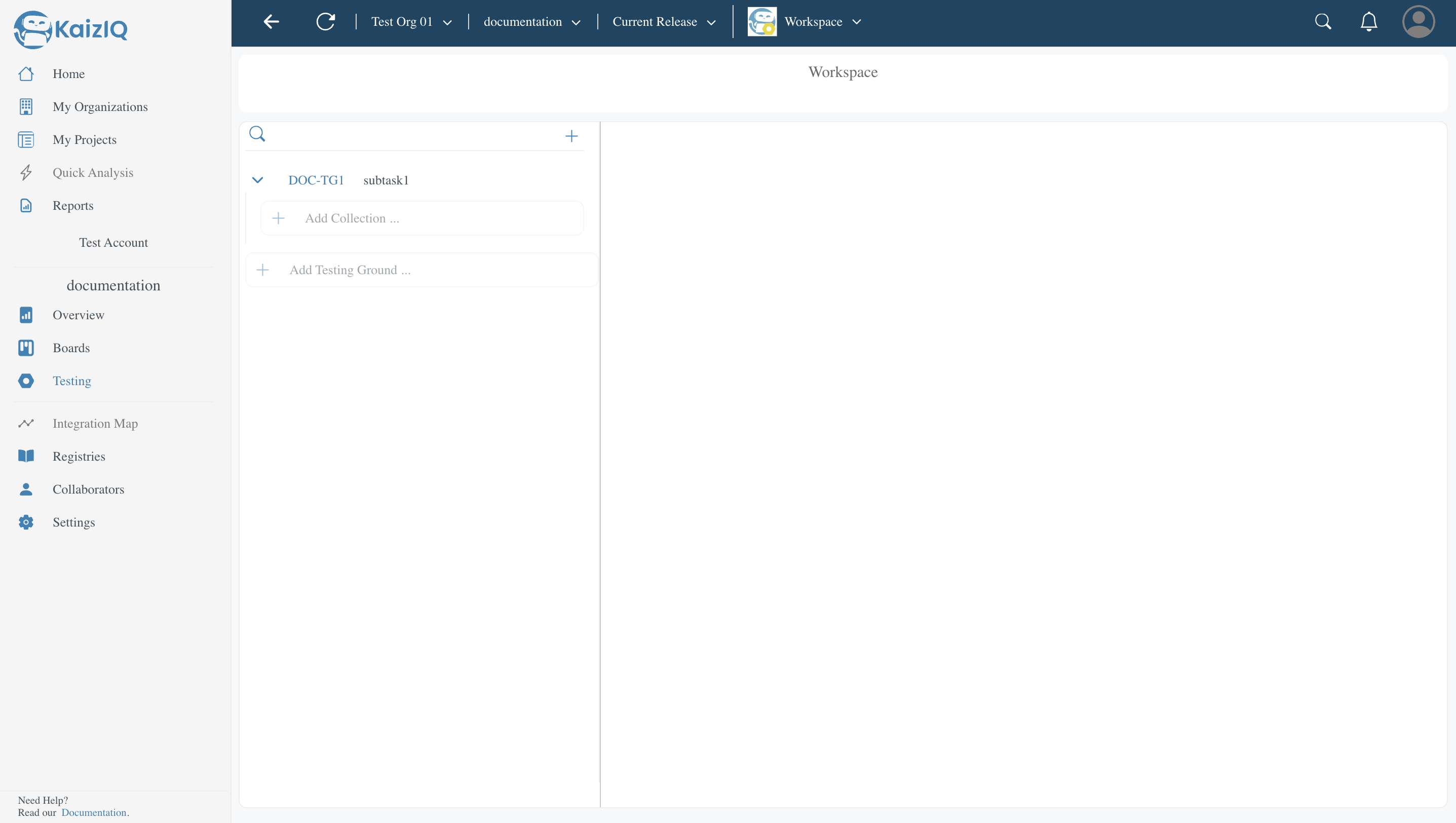
Here you can see that you can add collections. CLick on the "+" button to add a collection. A popup will appear, fill the form for example: We have named the collection as collection1, and click on the "Create" button.
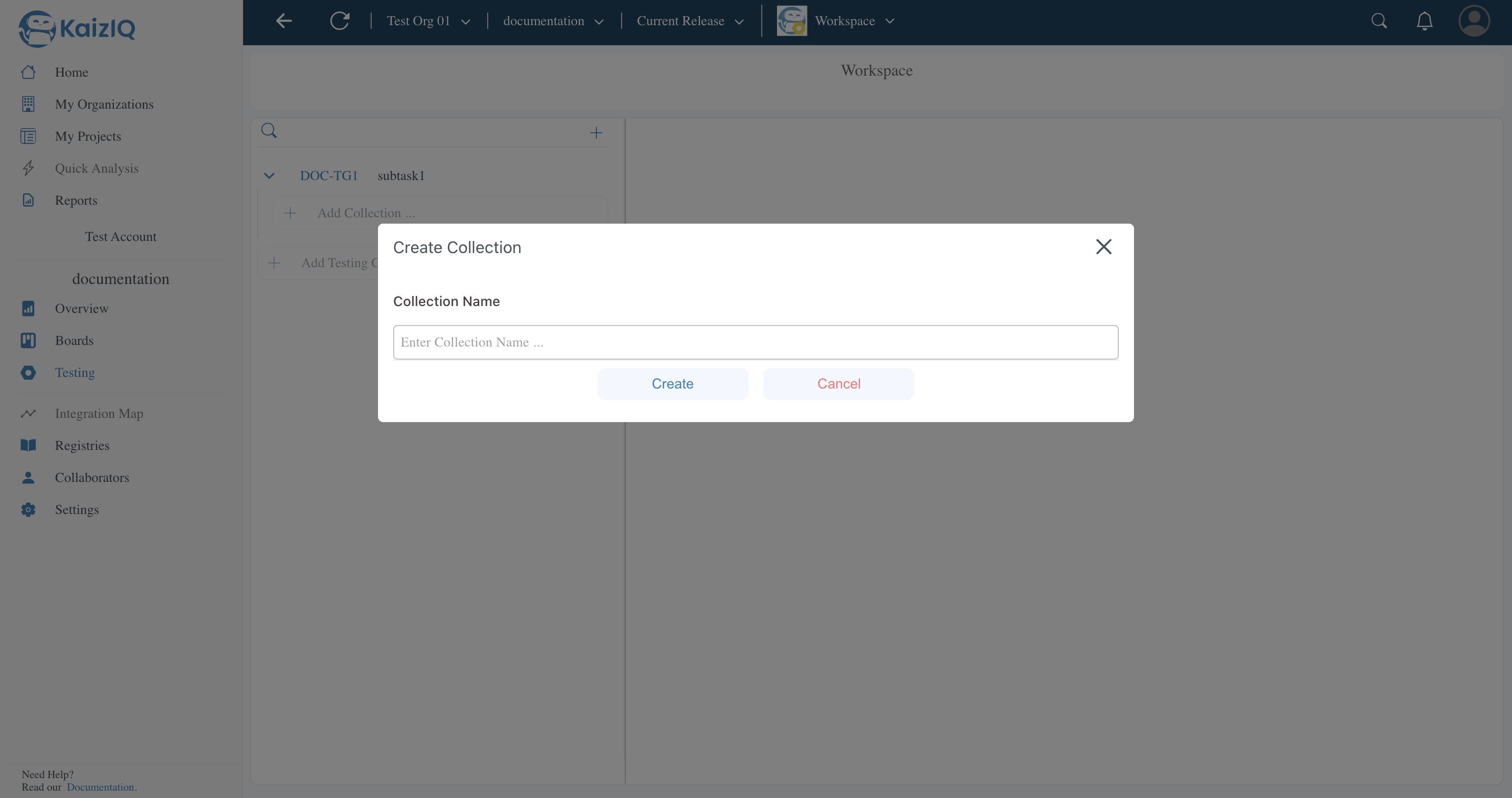
Collection will be created and you will be redirected, now you can see the details of collections. Click on the ">" icon you will see the details.
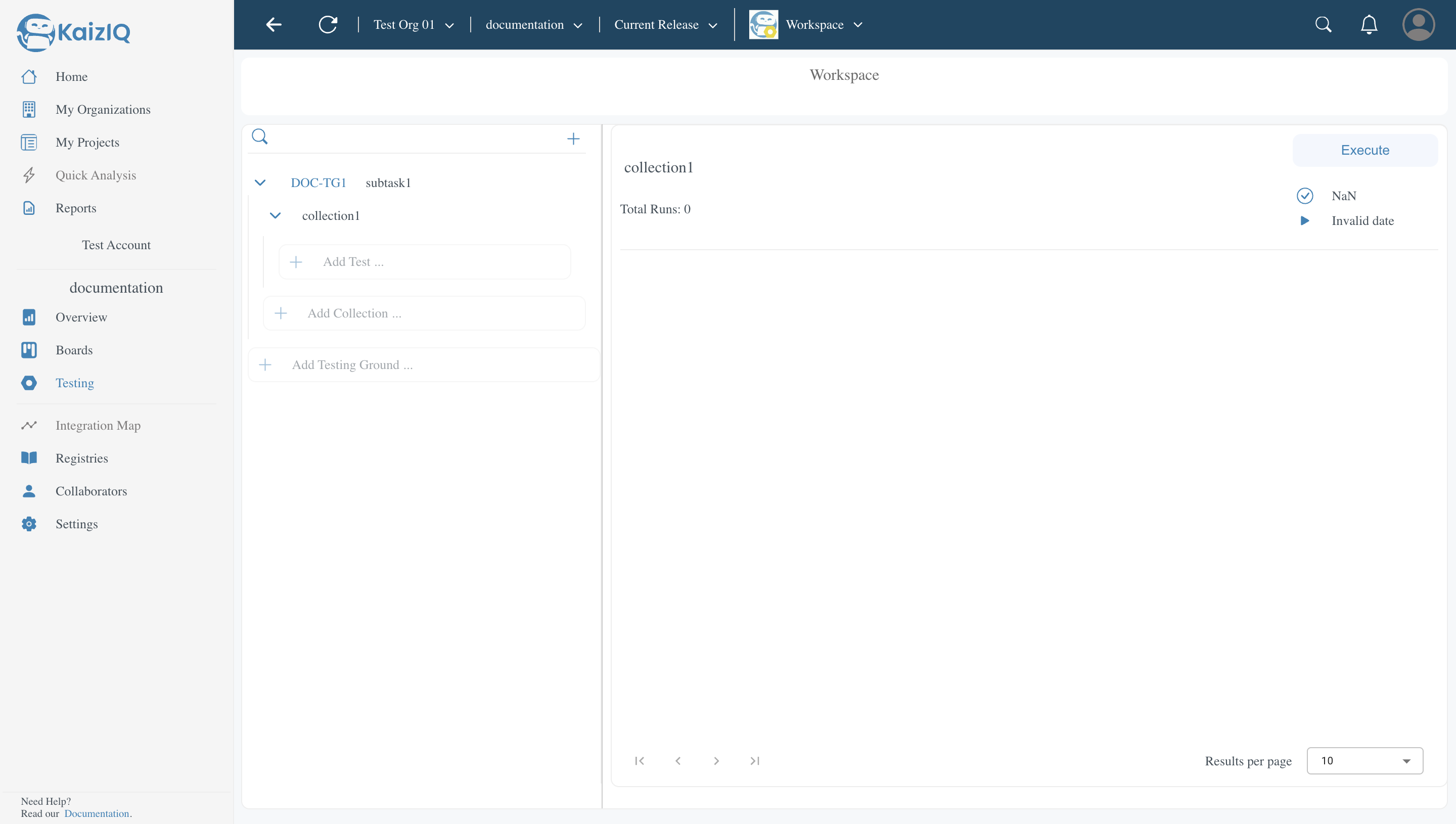
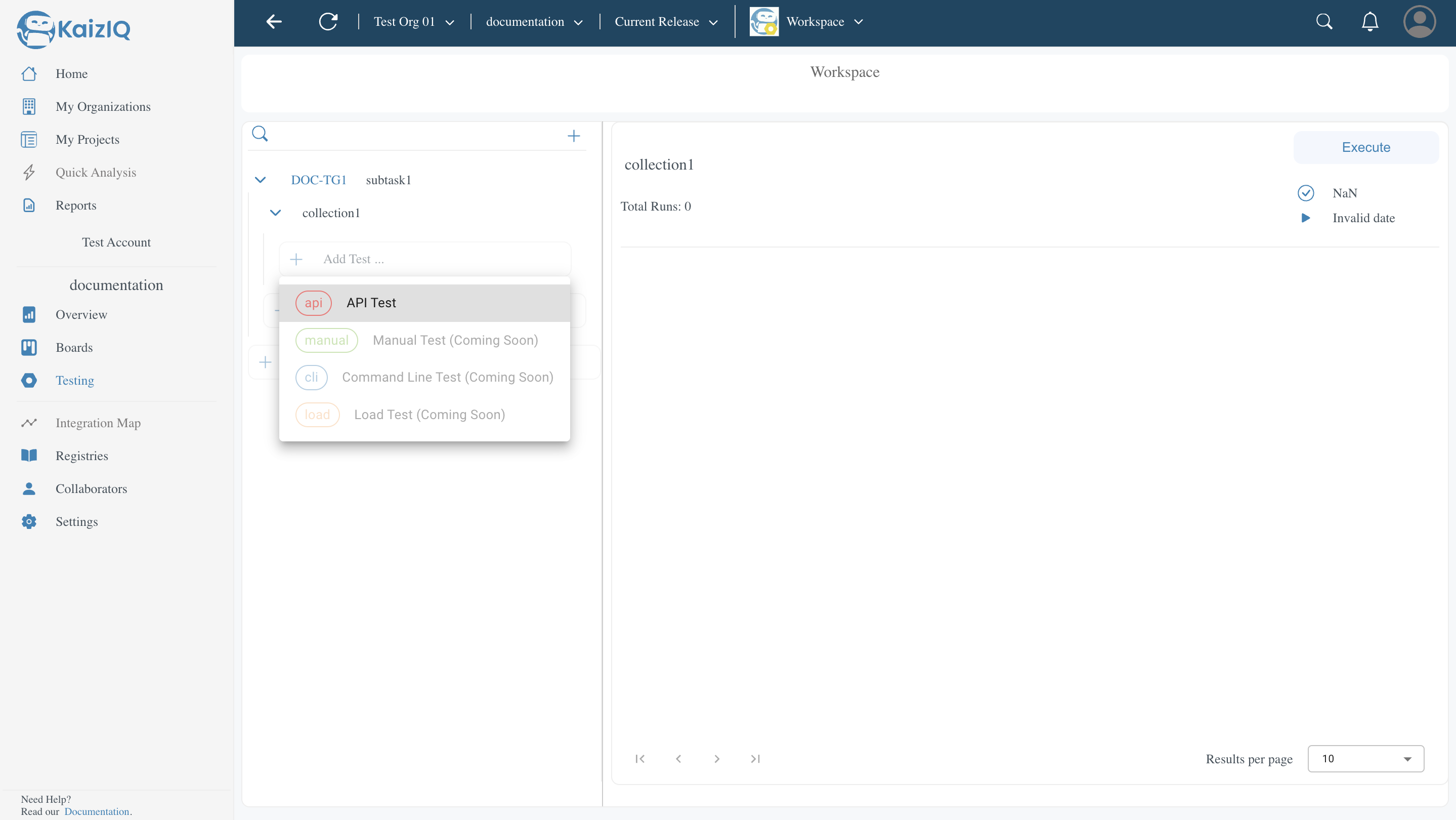
Here you can see that you can add test cases. Click on the "+" button to add a test case. Select the type of test you want to Perform. We have four types of test:
-
API Test- API testing is a type of software testing that involves testing application programming interfaces directly and as part of integration testing to determine if they meet expectations for functionality, reliability, performance, and security. Since APIs lack a GUI, API testing is performed at the message layer. -
Manual Test- Coming Soon. -
Command Line Test- Coming Soon. -
Load Test- Coming Soon.
Click on API test. A page will appear on the write which will ask you to fill the details to run the test.
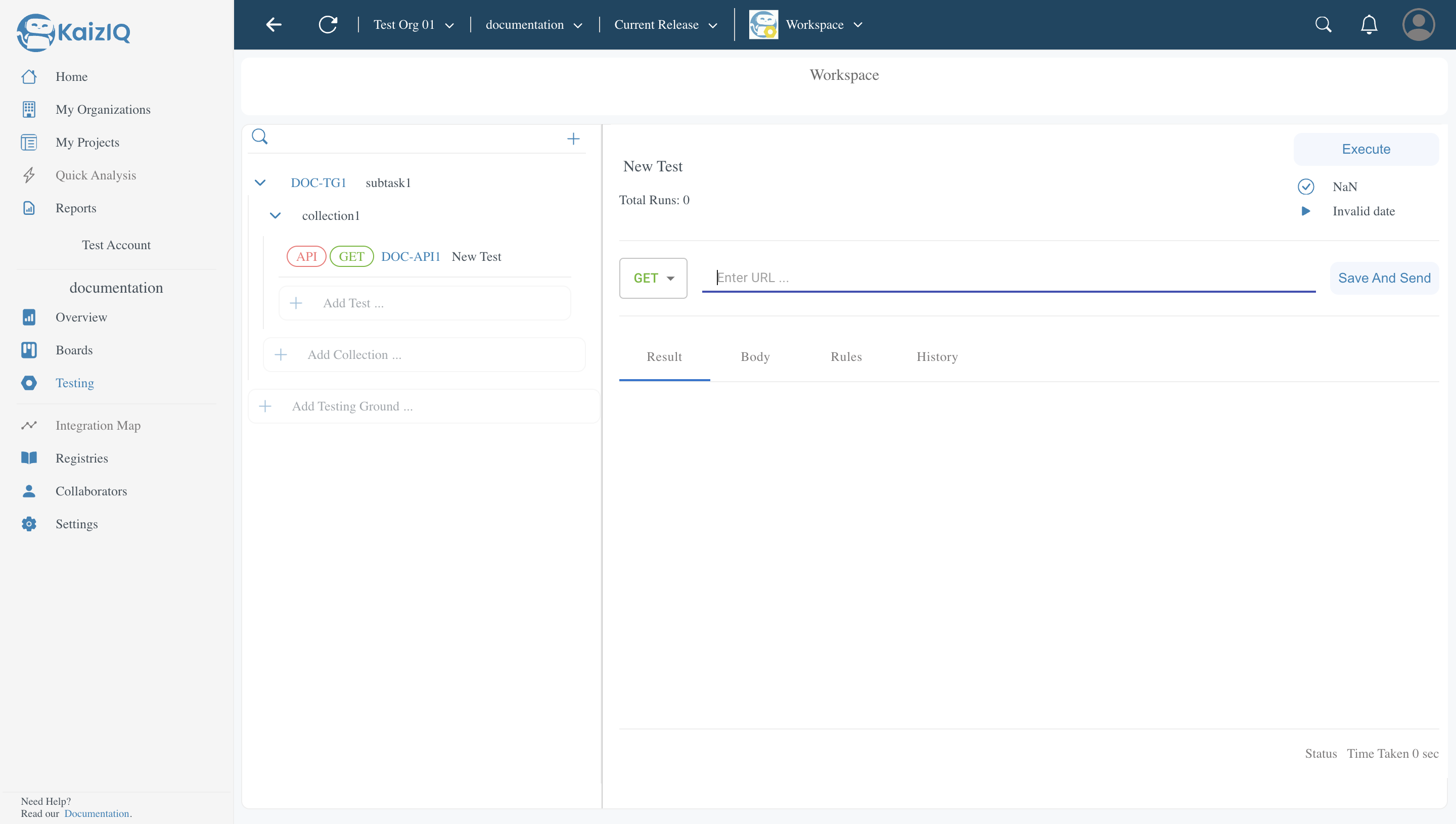
API Test
To help you our portal has a built-in API testing tool. You can use it to test your APIs. In API test we have four kinds of test:-
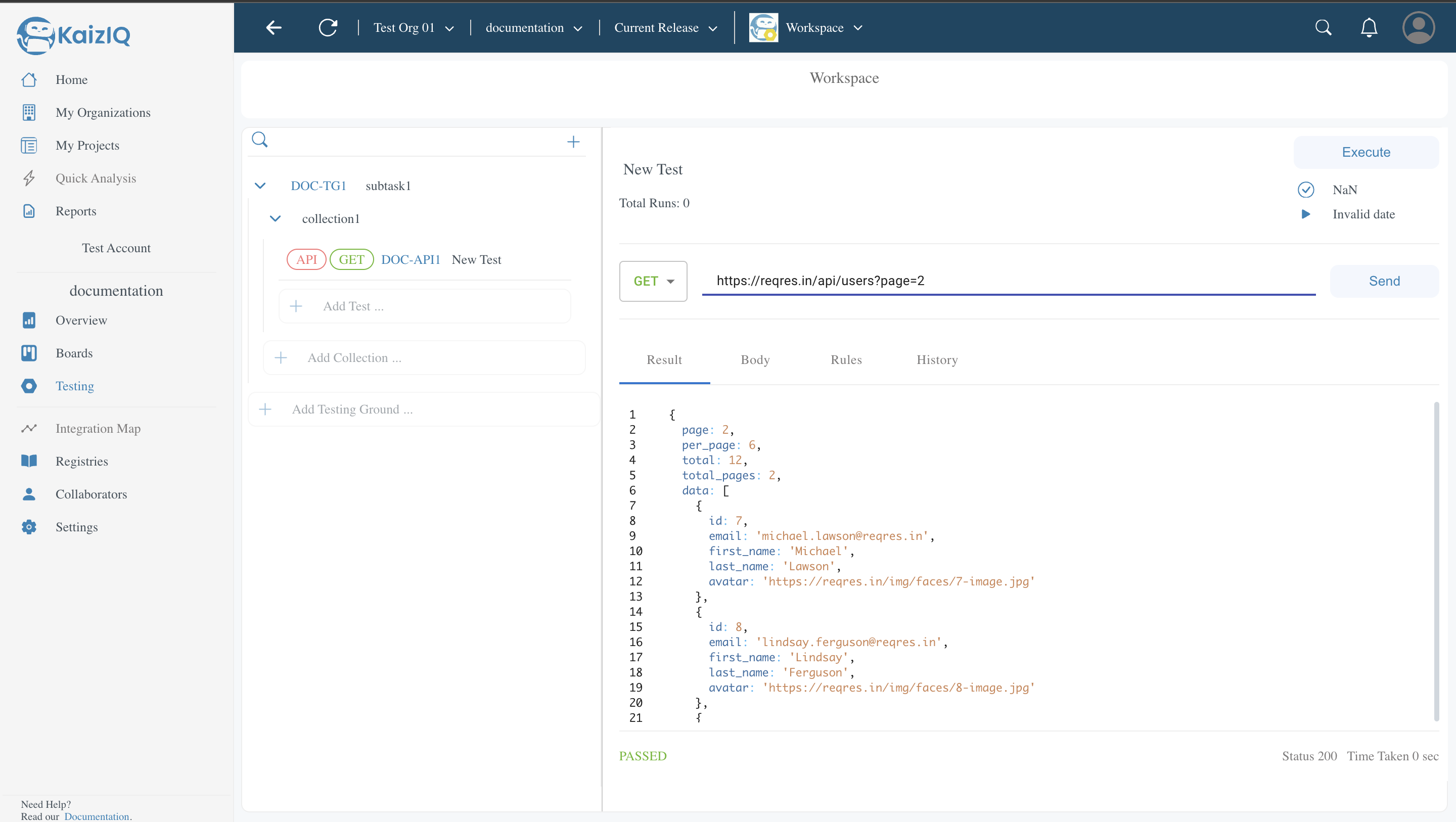
GET- The GET method requests a representation of the specified resource. Requests using GET should only retrieve data. If the status code is 200, then the request was successful and the response body contains the representation requested. Here is an example of a GET request to the KaizIQ Test API.
-
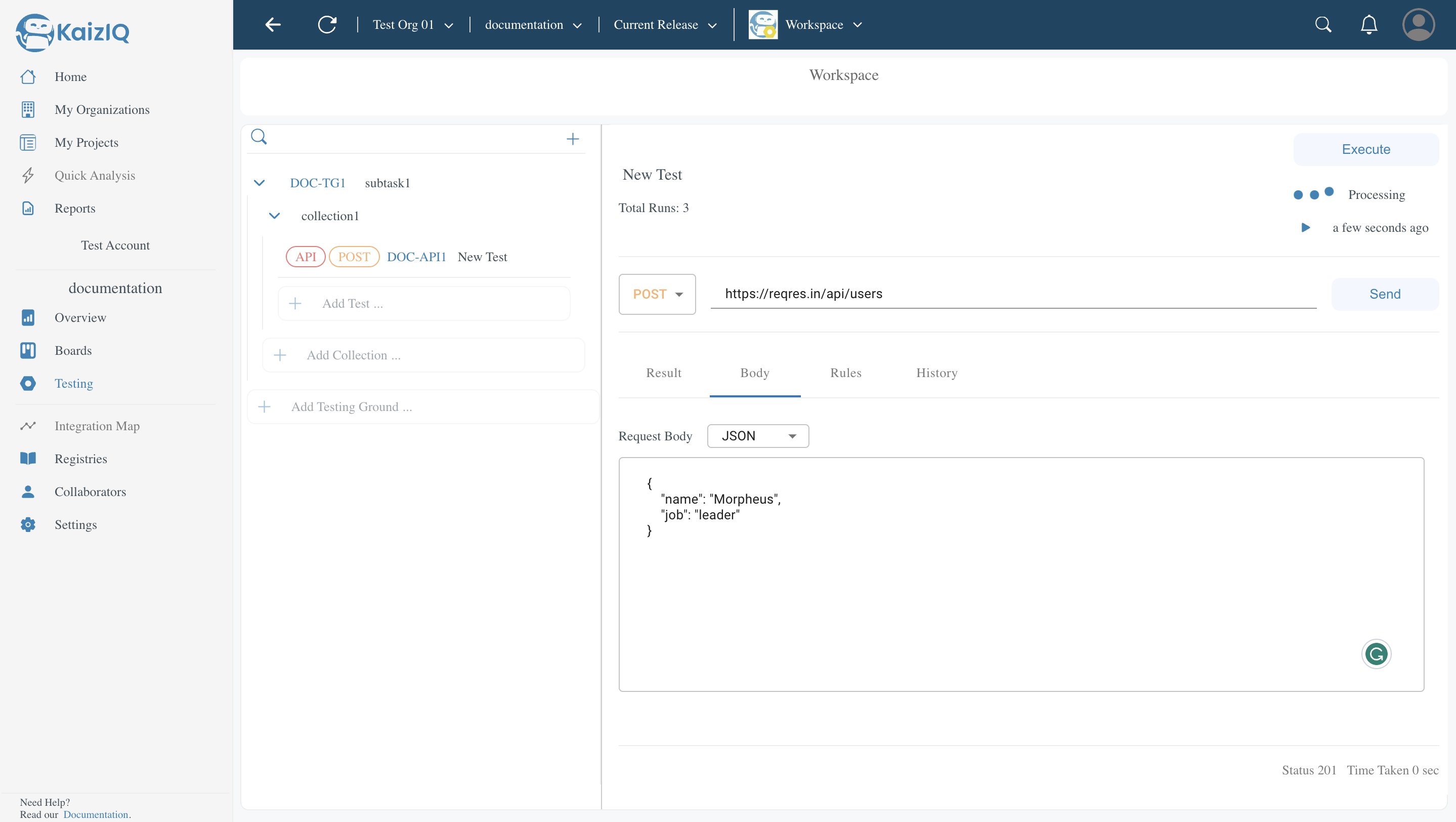
POST- The POST method is used to submit an entity to the specified resource, often causing a change in state or side effects on the server. If the status code is 201, then the request was successful and the response body contains the representation requested. Here is an example of a POST request to the KaizIQ Test API. You can see in the image that we have added the body in the form of JSON. And after request works a passed message in green colour is displayed.
-
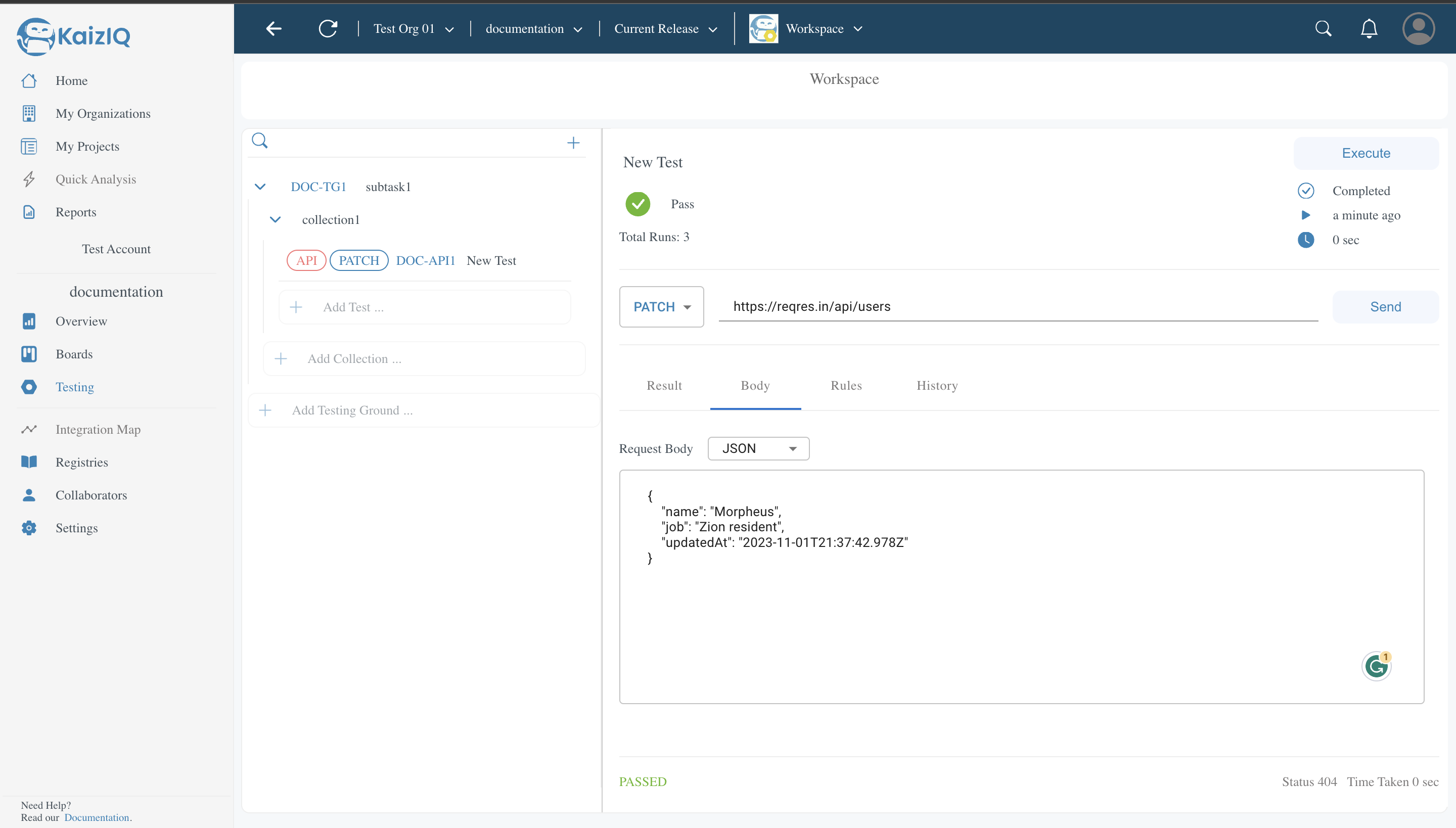
PATCH- The PATCH method is used to apply partial modifications to a resource. If the status code is 200, then the request was successful and the response body contains the representation requested. Here is an example of a PATCH request to the KaizIQ Test API.
-
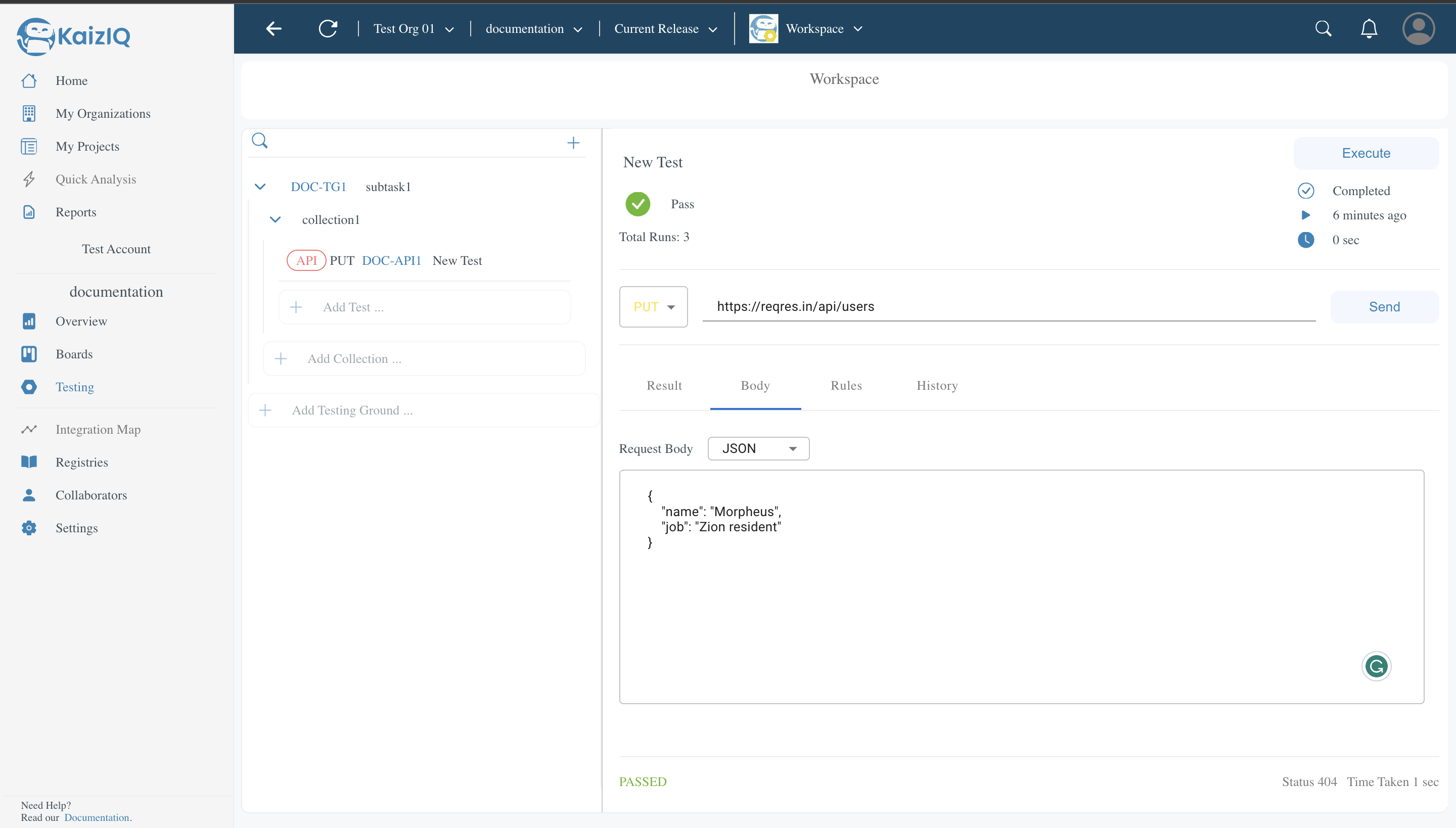
PUT- The PUT method replaces all current representations of the target resource with the request payload. It is used to send data to the API for creating or updating an existing resource. The difference between Put and Post is that the Put API is Idempotent. If the status code is 200, then the request was successful and the response body contains the representation requested. Here is an example of a PUT request to the KaizIQ Test API.
Rules
In rules section of our website you can add rules to your test. You can add rules to your test by clicking on the "+" button. For example, you want to add a rule to your test that if the return is 404 then the test will fail.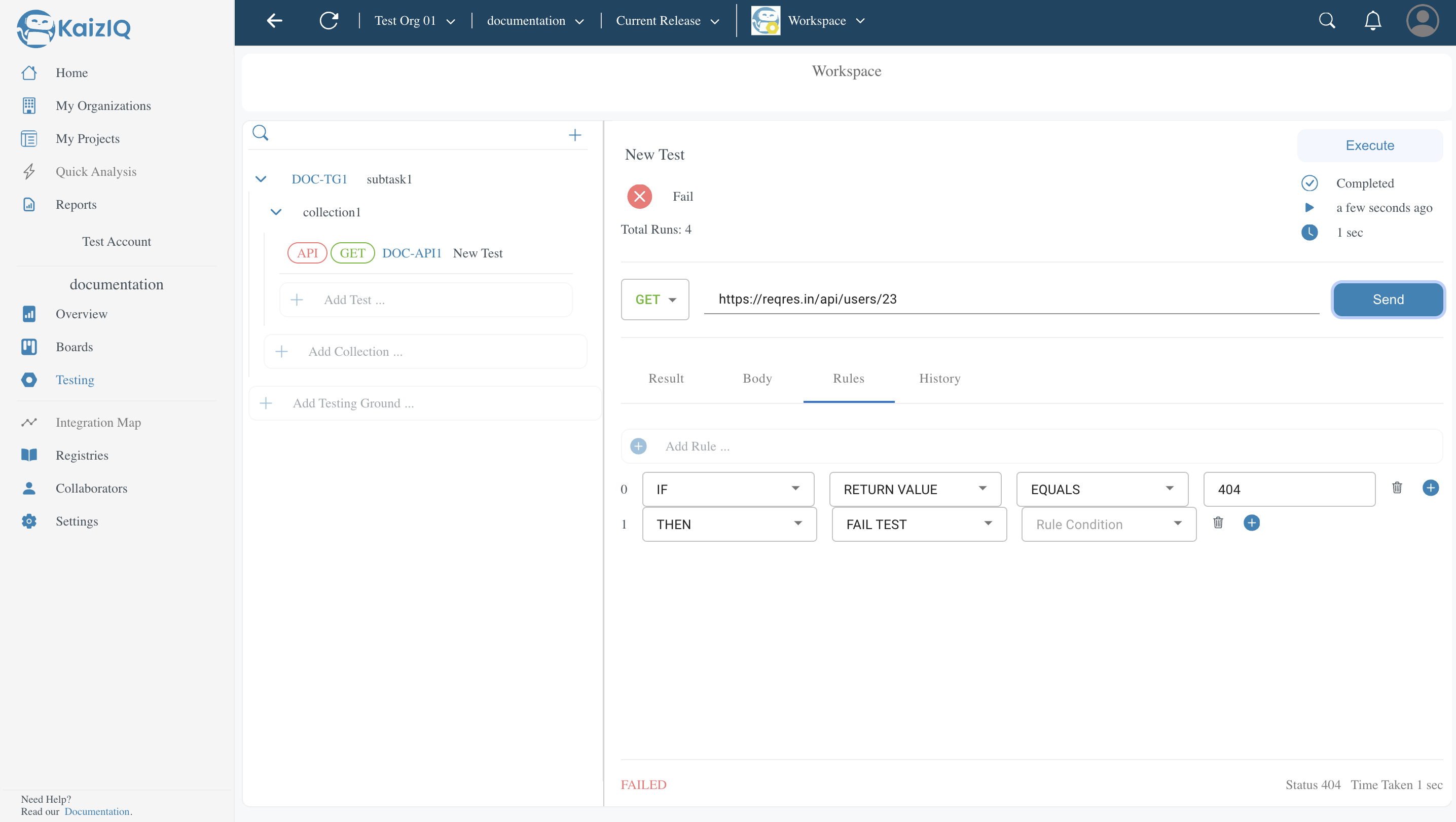
You can see that the rule is added to the test. And if the rule is not satisfied then the test will fail. As shown in the above screenshot it is written at the bottom.
History
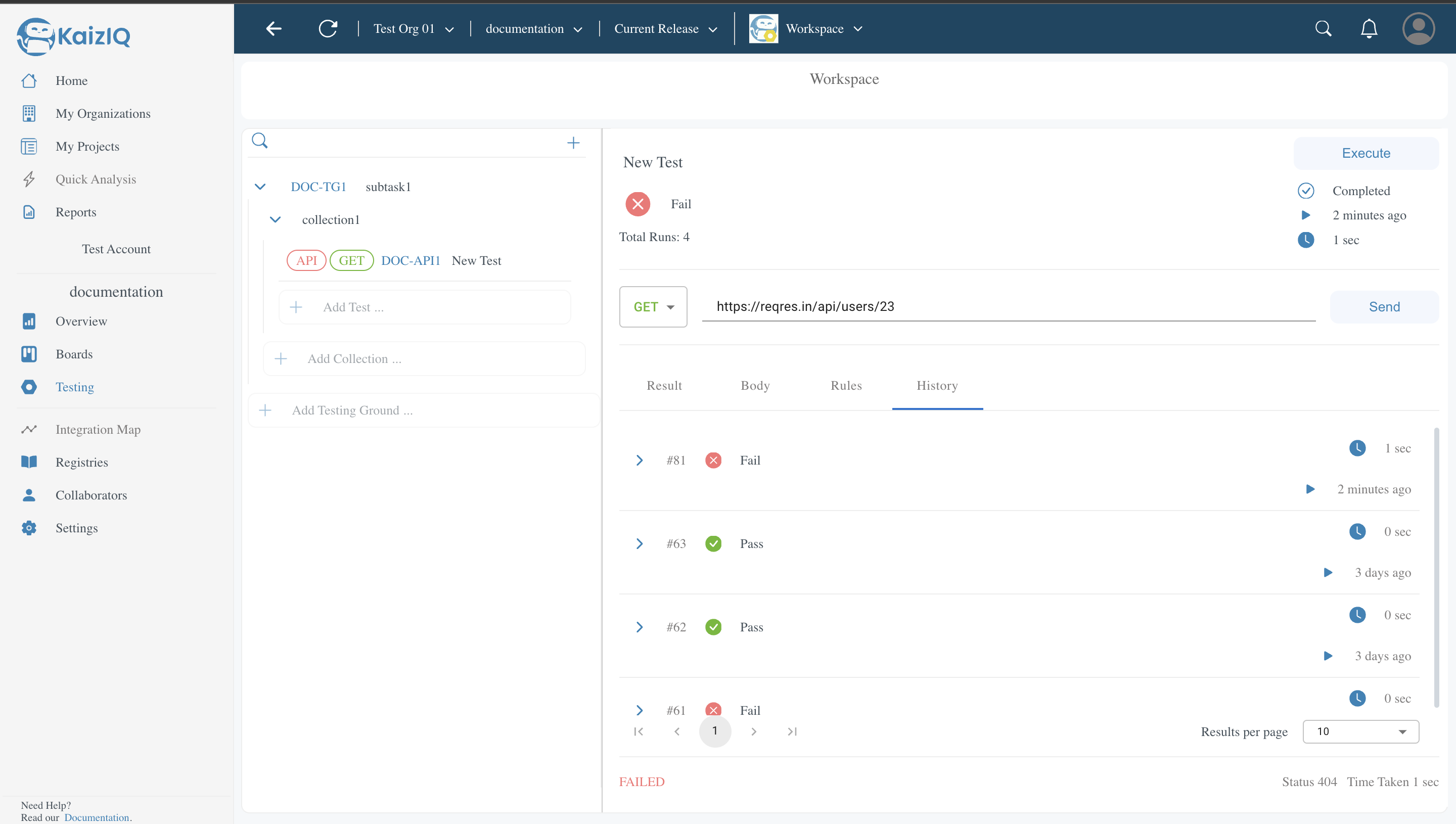
In history section of our website you can see the history of your test.You can see the history of execution of your test by clicking on the ">" button. It will show you the history of your test, when it was executed, what was the status of the test, what was the response of the test, what was the time taken by the test to execute.